
Plan and billing
Managing the subscription: the current plan, choosing a plan, adding modules, payment and the payment history.
How to open it
The "Plan and billing" item at the bottom of the rail.
What you can do
- See the current plan and the subscription period
- Choose a plan
- Add and remove modules
- Pay for and renew the subscription
- Apply a discount coupon
- Look through the payment history
The interface
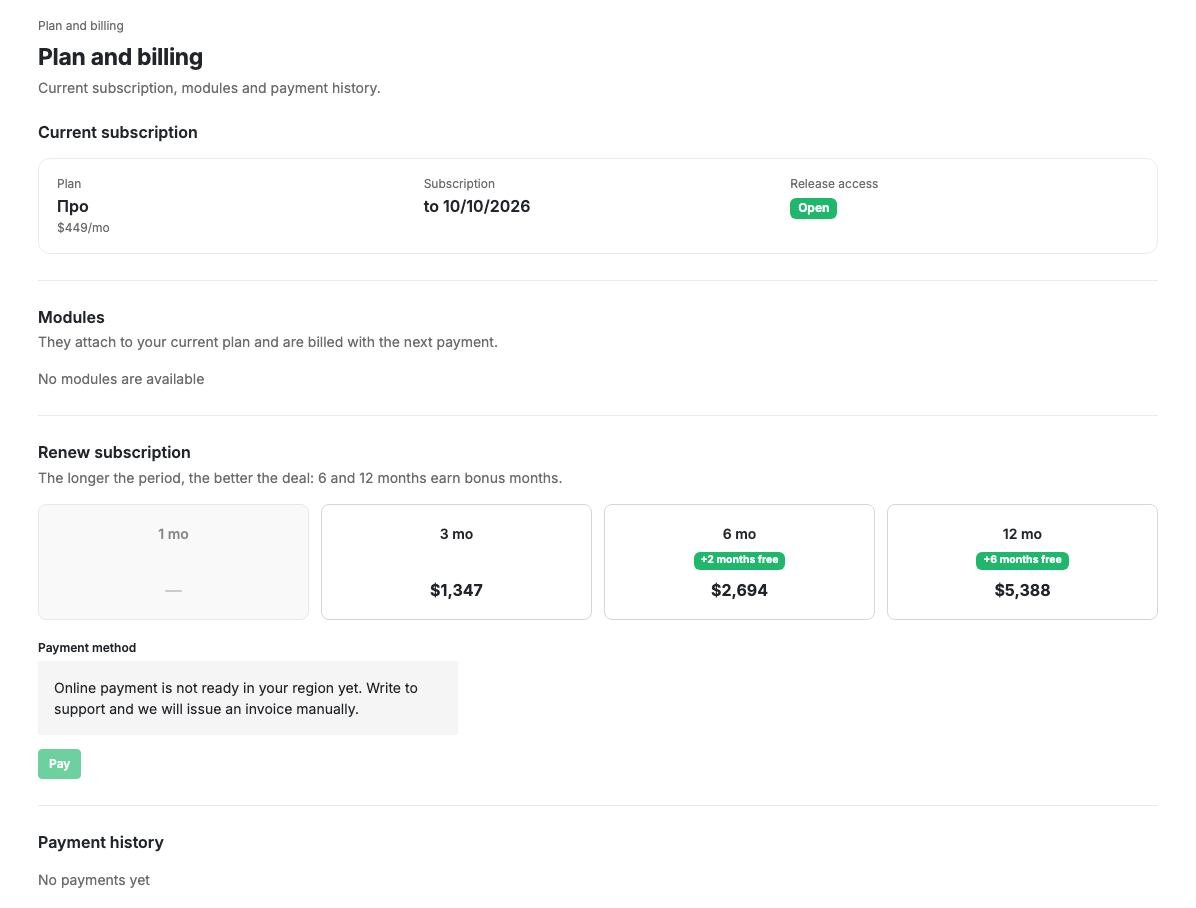
Current subscription
The current plan and its price, the subscription period and access to releases. If the subscription is unpaid, access to publication is marked as requiring payment.
Choose a plan
If the subscription has never been paid, plan cards are shown with their prices and what each includes. A plan is chosen by clicking its card.
Prices are shown in your account currency. It is determined automatically at registration from your country, and if the country could not be determined, the US dollar is used. After that the currency does not change on its own: to change it, write to support. Plans and modules that are not sold in your country are not shown in the list.
Modules
A list of additional modules with a price and an action button: Connect, Pay or Disconnect.
Paying for the subscription
- Period: how many months to extend for. Some periods add bonus months.
- Payment method: the methods available depend on your country. Payment by invoice for legal entities is available in Russia.
- Discount coupon: a code issued by support. Enter it and press Apply: the discount appears under the field and the total on the Pay button is recalculated. The coupon applies to the whole invoice, modules included.
- The Pay button creates a payment: a card payment opens a payment page, an invoice payment produces a PDF invoice.
Payment history
A table of payments: date, amount and payment status.
Scenarios
Pay by card
- Choose the payment period.
- Choose the card payment method.
- Press Pay and complete the payment on the payment page.
Pay by invoice
- Fill in the legal details in your profile.
- Choose the invoice payment method.
- Press Pay and download the invoice.
Apply a discount coupon
- Choose the plan (if the subscription has never been paid) and the period.
- Enter the coupon code and press Apply.
- Check that the total on the Pay button has been recalculated, then pay.
Limits and caveats
- Paying by invoice requires the organisation name, tax number and address to be filled in in your profile.
- Creating a publication request becomes available once the subscription is paid.
- The currency is fixed at the moment an invoice is issued. If the account currency was changed, previously issued unpaid invoices stay in the old currency and are paid as they are.
- Payment by invoice for legal entities is available in Russia only. Outside it, the subscription is paid by card.
- If online payment is still being set up in your country, a hint with a link to support appears instead of the method picker: the subscription is activated manually.
- A coupon works once per account, a multi-use one included: it cannot be applied again to the next renewal.
- The discount is calculated from the invoice total, so it is recalculated when the period or the plan changes. If the coupon no longer fits after that, it is dropped and a message appears under the input.
- A coupon is spent when the invoice is paid, not when it is issued. While an invoice is unpaid the coupon can be applied to another one: the previous unpaid invoice goes back to its full amount.
- A fixed-amount discount only applies to invoices in the currency it was issued in.
- A coupon only applies to an invoice you issue yourself. It does not apply to the invoices that come with a payment reminder - apply it on this page instead.