
Order sync rules
When a shop is connected to an accounting system, an order gets two owners: you in the cabinet and a program on the warehouse side. Both write to the same fields, and without an agreement somebody's edit is bound to be lost.
This page is that agreement: for each order field you decide who controls it.
How to open it
Settings, Sync rules, the Orders tab. There is a direct link in the header of the order list.
What you can do
- Assign a field to the cabinet or to the external system
- Remove locks from orders so fields can be edited by hand again
The interface
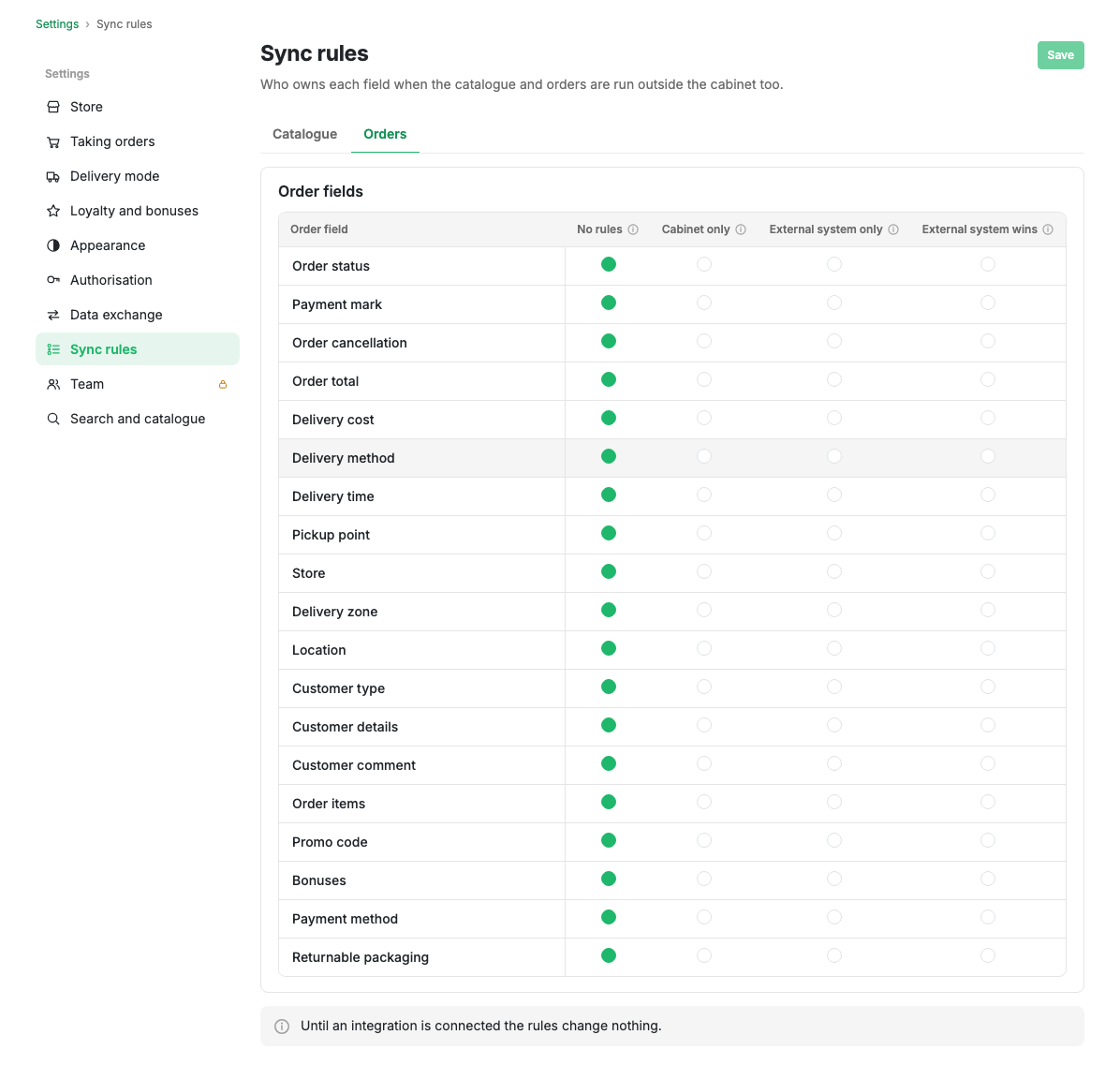
Sync rules is a separate settings page and the only place where the rules are configured. It has two tabs: Catalogue (products and sections) and Orders. The Save button is shared: if you edited both, everything is written at once, and a tab with unsaved edits shows a dot.
A table of order fields: status, items, totals, delivery, payment, customer details. A row is a field, a column is a mode, and one of the four columns is marked in each row. That way the whole layout of the rules is visible at once: that the entire totals block belongs to the warehouse, for example, while statuses stayed with the cabinet.
The explanation of a mode is hidden under the "i" icon in the column heading. It is needed because "Cabinet only" and "External system wins" sound similar but behave differently.
If orders already carry locks, their counter and a bulk reset button are shown in the card header.
| Mode | What it means |
|---|---|
| No rules | Everyone writes. This is how a shop works by default |
| Cabinet only | Sync does not touch the field. Suits statuses you manage yourself |
| External system only | The accounting program owns the field; it is shown with a lock on the card |
| External system wins | You may edit until the accounting program sends its own value |
The Catalogue tab is laid out the same way, but its set of modes differs: for products and sections the question is not "whose field" but how far sync is allowed to touch what you wrote by hand. Below the field table there is also a setting for what to do with an item that disappeared from the export.
Scenarios
Hand the warehouse the items and keep the statuses
- On the Orders tab set "External system only" for the "Order items" and "Order total" fields.
- Set "Cabinet only" for the "Order status" field.
- Press Save.
Now sync does not overwrite the statuses you set by hand, and you do not argue with the warehouse over the items.
Take a field back
- Change the field mode to "No rules" or "Cabinet only".
- If the field shows a lock on order cards, press "Remove all locks".
Limits and caveats
- Until the shop has an active integration the rules affect nothing: a field simply has no second owner.
- By default every field is in "No rules" mode, so switching the section on changes nothing until you choose otherwise.
- The payment state does not obey the rules: money either arrived or it did not, regardless of who runs the order, and the payment provider always sets that mark.
- A lock on one particular order can be removed on its own card.
- The old addresses of the rule pages keep working: they carry you to the right tab.