
Message card
What the shopper will see inside the app, and under what conditions.
How to open it
In-app messages, the "Create message" button or Edit in a list row.
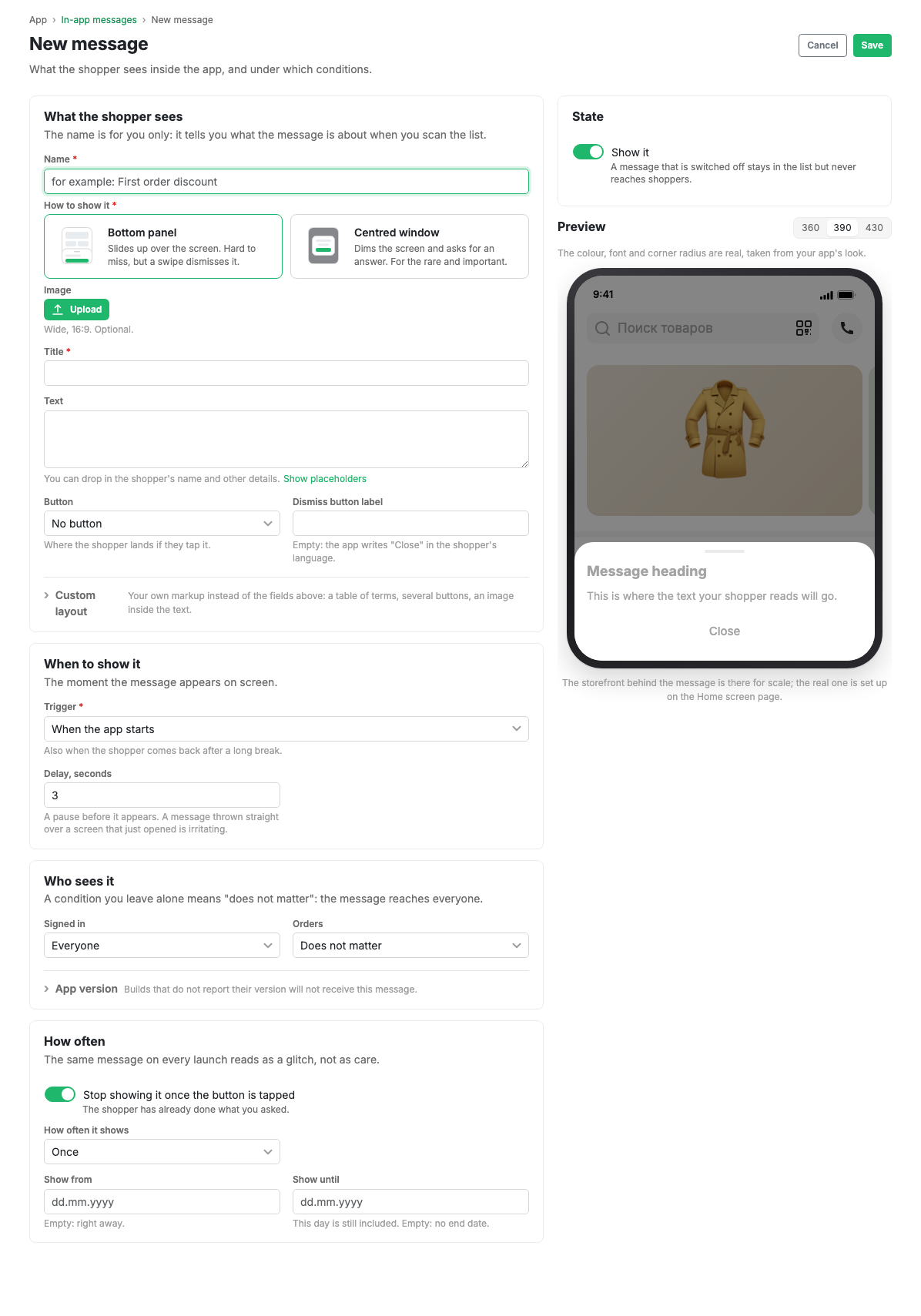
What the shopper sees
- Name is only for you: it tells you what the message is about in the list.
- How to show it: bottom panel or centre window.
- Image: wide, 16:9, optional.
- Title is required, text is not. The text can include the shopper's name and other data: the "Show substitutions" link opens the list.
- Button: where the shopper goes if they tap. You can leave it as "No button".
- Close button caption. An empty field means the app writes "Close" itself in the shopper's language.
- Custom markup: an expandable block that replaces the fields above with your own layout. Needed when the message has to contain a table of terms, several buttons or an image inside the text.
A preview on a phone mock-up sits on the right. The colour, font and radius there are real, taken from your app's appearance. The width can be switched between 360, 390 and 430 points.
When to show it
Trigger is the moment the message appears: on app launch, on first opening the basket, after checkout, on opening the loyalty card and so on.
Delay is a pause before showing, in seconds. A message that jumps over a screen the instant it opens is irritating, so the delay is not zero by default.
Who to show it to
An empty condition means "does not matter": the message reaches everyone.
- Signed in: everyone, signed-in shoppers only, or guests only.
- Orders: does not matter, only those who have not ordered yet, or only those who have bought before.
- App version: an expandable block. Builds that do not report their version will not receive a message with such a condition.
How often
The same message on every launch reads as a fault, not as care.
- Stop showing if the button was tapped: the shopper has already done what you asked.
- Display frequency: once, once a day, every time.
- Show from and to: the message's lifetime. An empty "from" means "immediately", an empty "to" means "indefinitely". The day given in "to" is still shown.
State
The Show switch at the top right. A switched-off message stays in the list but does not reach the shopper.