
Publication requests
The history of requests to publish the app in the App Store and Google Play. This is where a new request is created and its status is followed.
How to open it
The rail, the Growth group, Publication.
What you can do
- Create a request to publish the app
- Track request statuses and store versions
- Open a request card
The interface
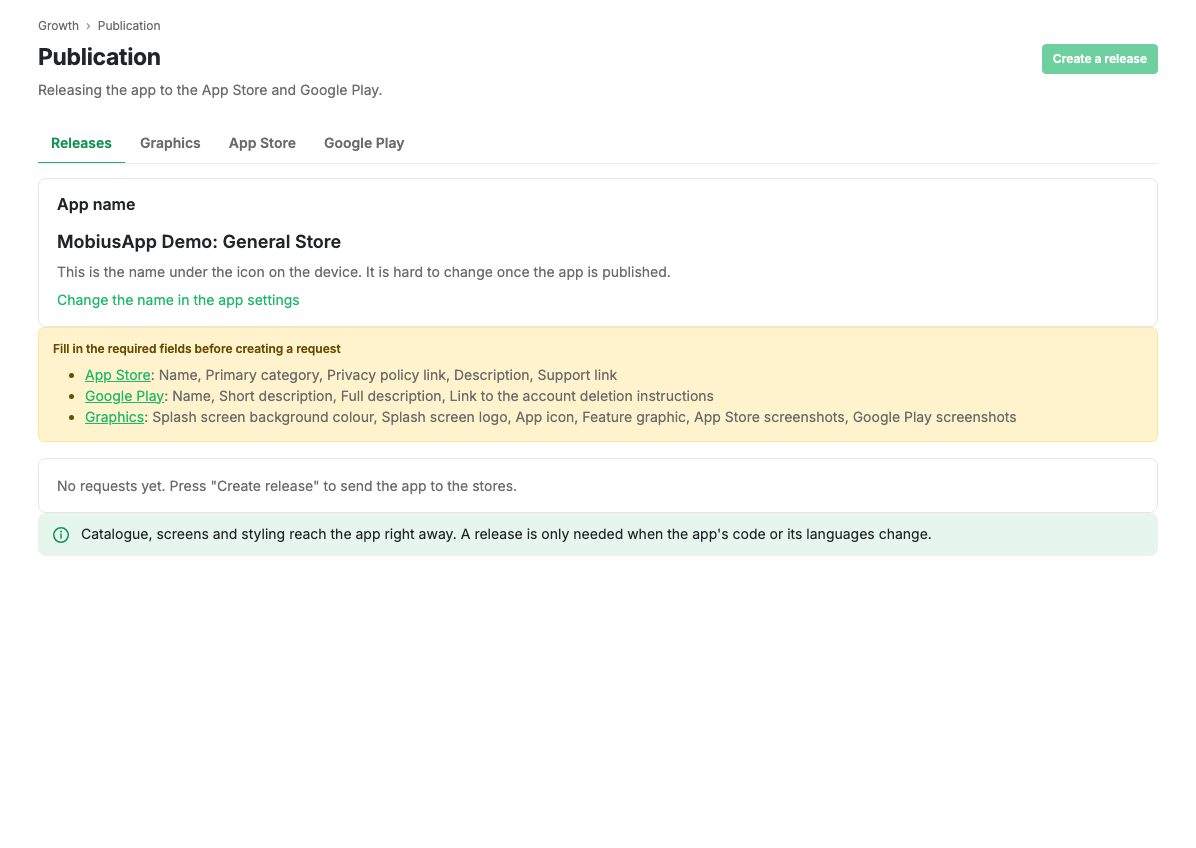
At the top is the name the app will be published under, with a link to the app settings. If required materials are missing, the list of missing fields is shown with links to the right sections.
The New request button creates a release. It is unavailable while an unfinished request exists or required fields are empty.
Table columns
| Column | Contents |
|---|---|
| # | The request number |
| Status | The current status, as a coloured badge |
| iOS | The App Store version and build, or a dash |
| Android | The Google Play version and build, or a dash |
| Created | The creation date |
| Updated | The date of the last change |
Clicking a row opens the request card.
Request statuses
- Draft: the request is created and can be sent for review.
- In review: a moderator is checking the request.
- Needs changes: the moderator asks for edits.
- Submitted: the release has gone to the App Store and Google Play for their review.
- Published: the app is out in the stores.
- Cancelled: the request was cancelled.
Scenarios
Create a publication request
- Fill in the graphics, the App Store details and the Google Play details.
- Make sure the list of missing fields is empty.
- Press "New request".
- Open the card and send the request for review.
Limits and caveats
- Only one unfinished request can exist at a time.
- The create button becomes available once every required material is filled in and a subscription is in place, see Plan and billing.
- The app name is hard to change once published in the stores: check it in advance.
Related pages
Updated 04.09.2026 18:04
Was this page helpful?