
Attributes
The attribute directory is the list of product properties with stable codes: "Colour", "Volume", "Material" and the like. It decides which properties the app builds catalogue filters from.
Do not confuse it with the Attributes tab on the product card: that holds values for one specific product, while this is the shared directory of properties for the whole catalogue.
How to open it
The rail, the Catalogue group, Products, the Attributes tab.
What you can do
- Browse the attribute directory
- Create new attributes
- Edit and delete attributes
- Edit attributes in bulk
The interface
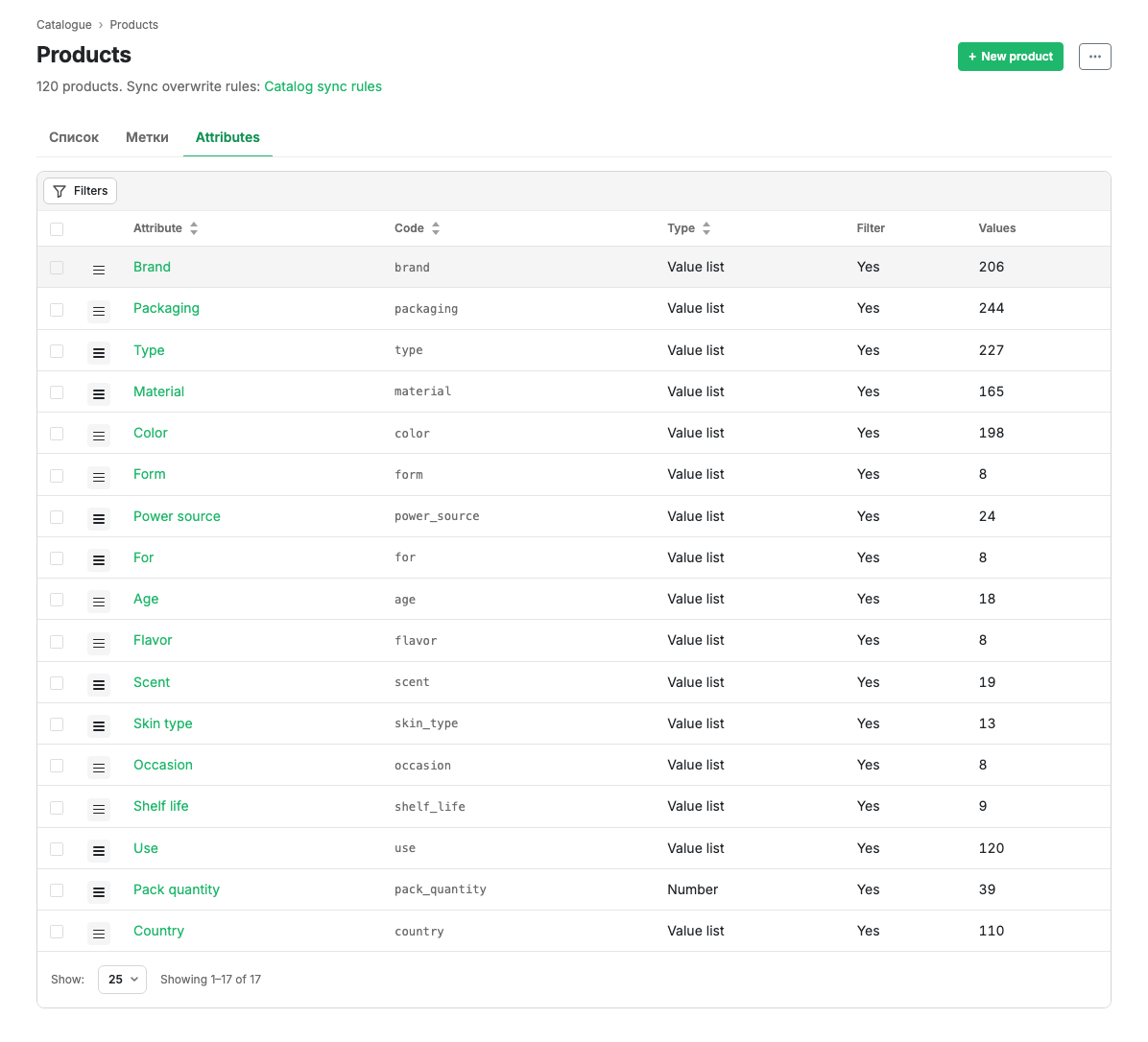
Table columns
| Column | Contents |
|---|---|
| Attribute | The name. Clickable, opens the edit form |
| Code | The technical code used by integrations and filters |
| Type | The value type: list of values, number, string, boolean |
| Filter | Whether the attribute takes part in catalogue filters |
| Values | How many distinct values occur in the catalogue |
Sorting is available by name, code and type.
Row actions
The menu at the start of a row opens editing and deletion. The checkboxes on the left enable bulk actions on the selected attributes.
Scenarios
Create an attribute
- Press "New attribute".
- Fill in the name and choose a type.
- Mark whether it takes part in catalogue filters.
- Save.
Remove an attribute from filters
Open the attribute and clear the filter flag. The values stay on the products; only the attribute itself disappears from catalogue filters.
Limits and caveats
- Catalogue attributes usually arrive from sync together with products. The overwrite rule is set in Sync rules, the Attributes row.
- The Values column counts values across the whole catalogue, not for the selected point of sale.
Related pages
Updated 04.09.2026 18:04
Was this page helpful?