
Customer list
Everyone who has been into the app: how many orders they have, how many bonuses and when they were last in.
How to open it
The rail, the Sales group, Customers, the List tab.
What you can do
- Browse shoppers page by page
- Narrow them down quickly with sets and filters
- Open a customer card
- Write a push to a chosen audience with the header button
The interface
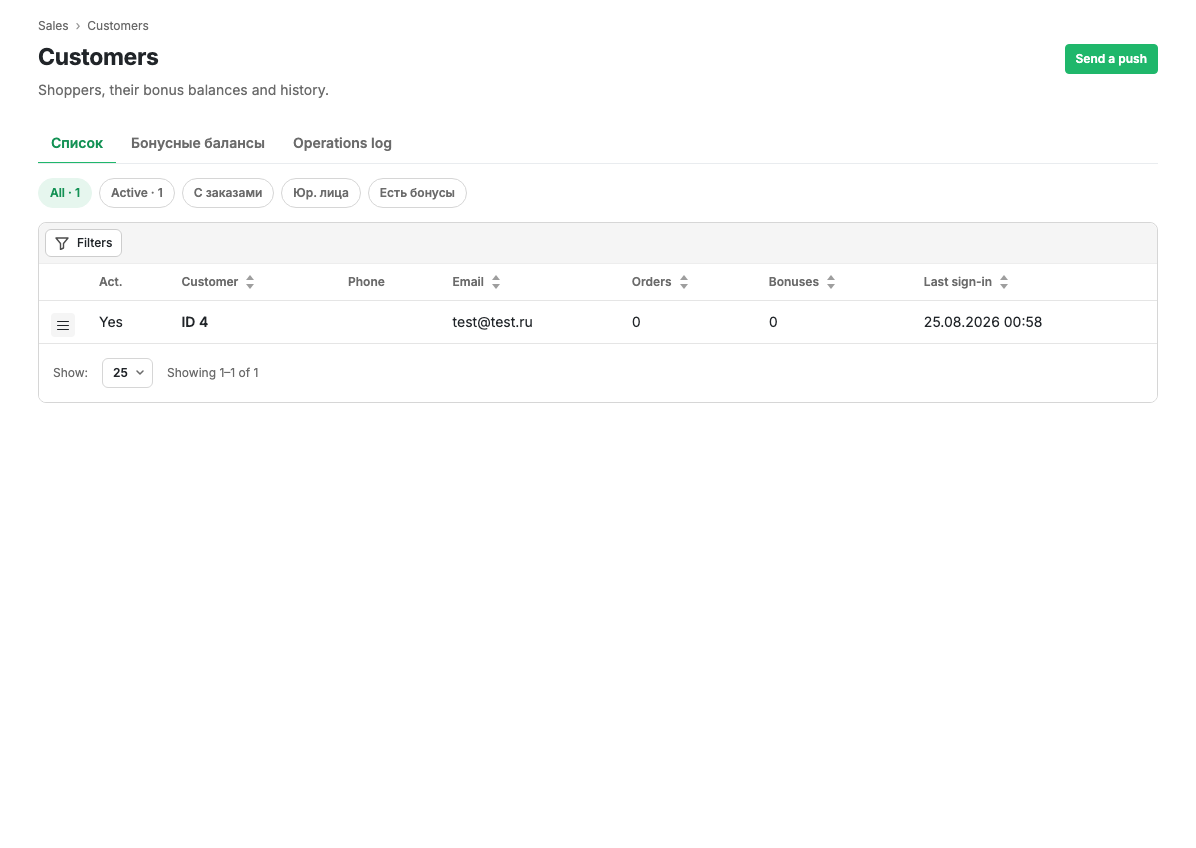
Tabs
| Tab | What it covers |
|---|---|
| List | The shoppers themselves |
| Bonus balances | How many bonuses each holds and how many await activation |
| Operations log | The history of accruals, redemptions and expiries |
Sets
The buttons above the table are ready filters with counters: all, active, with orders, legal entities, with bonuses on the account.
Table columns
| Column | Contents |
|---|---|
| Act. | Whether the shopper is active |
| Customer | The name, or the internal number if there is none |
| Phone | The phone, if the shopper left one |
| The email, if they signed in with one | |
| Orders | How many orders they placed |
| Bonuses | The current bonus balance |
| Last sign-in | When they last opened the app |
Sorting is available by customer, email, order count, bonuses and last sign-in.
Filters
The Filters button opens a panel: name, phone, email, payer type, activity, presence of orders and the last sign-in period.
Row actions
The menu at the start of a row opens the customer card and a link to their bonus operations.
The "Write push" button
It leads to Push campaigns, where a campaign for the chosen audience is created. You cannot send a message to one shopper straight from the list: push works as a broadcast, not as a conversation.
Limits and caveats
- Only people who signed into the app appear in the list. A shopper who checked out as a guest does not get a row of their own.
- The name and phone come from the shopper's profile and their orders; you cannot edit them on their behalf in the cabinet.