
YML import
Import loads categories and products in bulk from an external catalogue in YML format (Yandex Market Language). You give the address of an XML file and the system downloads it and transfers the data itself.
How to open it
Settings, the Data exchange group, the YML import tab. The page also opens through cabinet search by the words "import" or "feed".
What you can do
- Load the catalogue from a YML feed by link
- Turn on scheduled import, refreshing once a day
- Clear the catalogue before importing
- Watch the history of recent imports and their progress
The interface
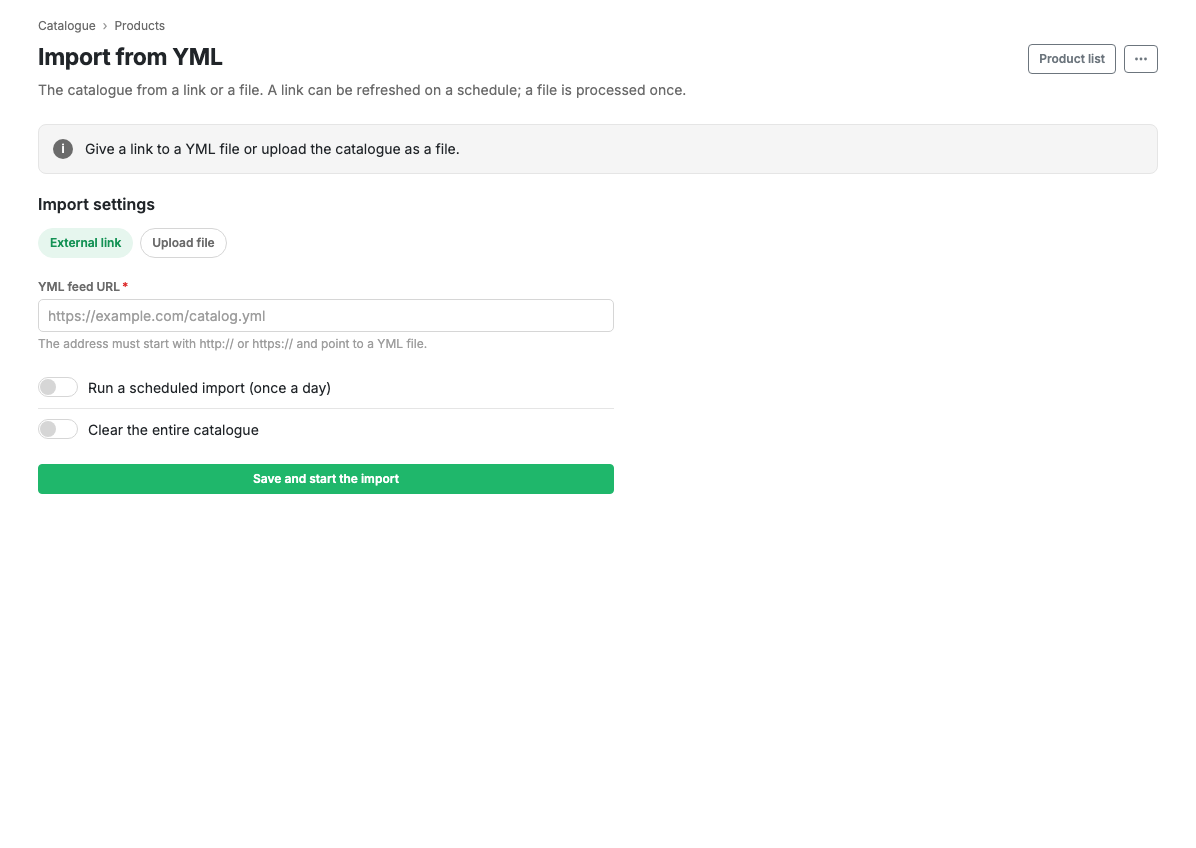
Import parameters
- YML feed address: required. A link to an XML file in YML format over
httporhttps. - Run scheduled import: with this on, the catalogue is refreshed from the feed once a day.
- Clear the whole catalogue: every category and product is deleted before the import. Switching it on shows a warning.
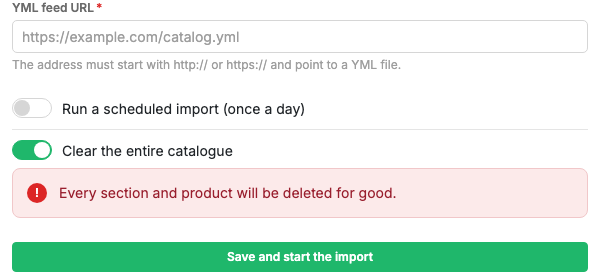
The "Save and start import" button stores the feed address and queues the import.
Recent import history
If imports have been run before, a history table is shown above the form: status (queued, succeeded, failed), start and finish times, the number of products loaded and the error text. A queued import shows a progress bar.
Scenarios
Load the catalogue from a feed
- Paste the YML feed address into the field.
- Turn on scheduled import if you need it.
- Press "Save and start import".
- Watch the status in the history table.
Replace the catalogue completely
- Paste the YML feed address.
- Turn on "Clear the whole catalogue".
- Press "Save and start import" and confirm the clearing.
States
- Restart unavailable: there is a pause between imports. Until it passes the start button is disabled and the screen shows when a restart becomes possible.
- Import queued: the history shows a progress bar and the page refreshes itself.
Limits and caveats
- Clearing the catalogue is irreversible: every category and product is deleted before the import. Before running it, make sure the feed holds current data.
- Import runs in the background: you can leave the page after starting it and the job carries on.
- Clearing bypasses Sync rules: it deletes the catalogue outright.
Related pages
Updated 04.09.2026 18:04
Was this page helpful?