
Taking orders
Everything between "added to basket" and "order placed": how you ship, how you get paid, what the shopper fills in, which statuses exist and where the list of cities comes from.
How to open it
Settings, the Taking orders group. Five tabs.
For the shop to work you need at least one active delivery method and one active payment method.
Delivery
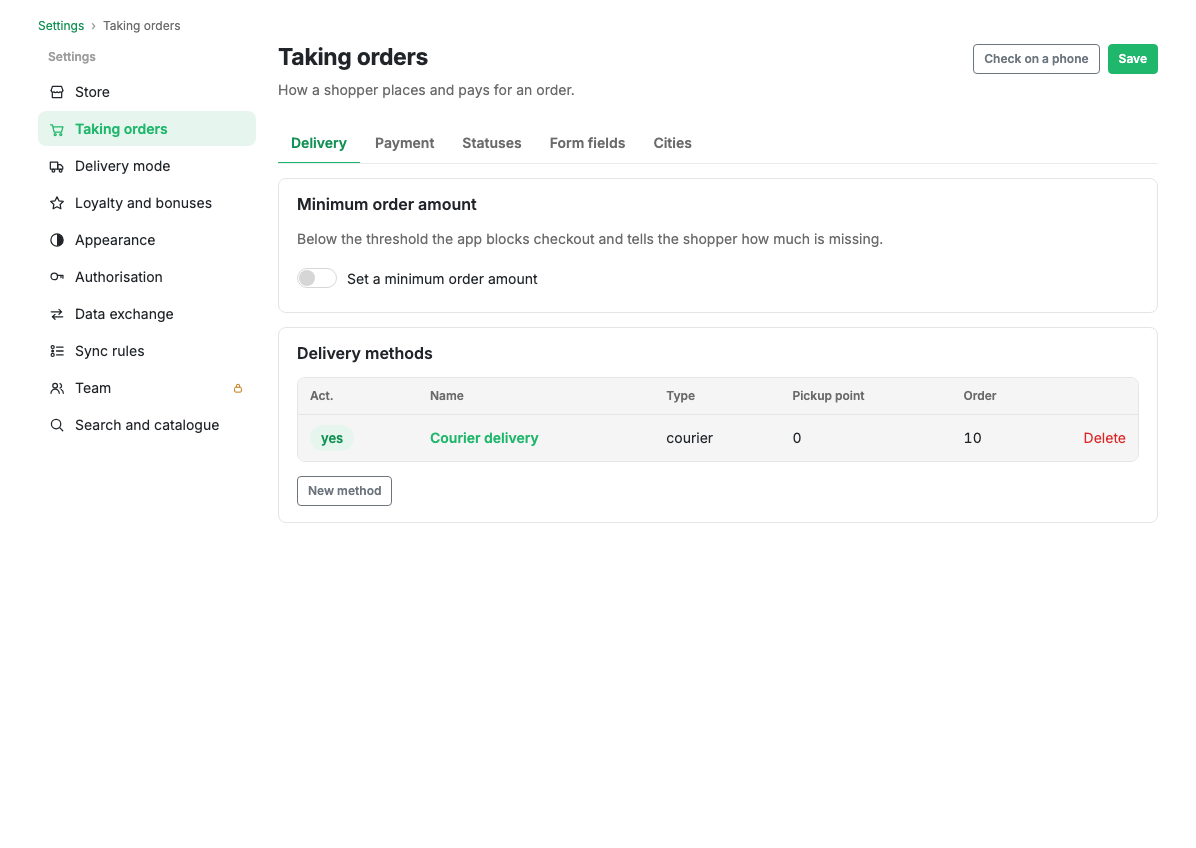
- Minimum order value. Below the threshold the app will not let the shopper check out and says how much is missing. There is no limit by default.
- Delivery methods. The table shows whether a method is active, its name, its type (courier or pickup), the number of pickup points and its order in the checkout form.
The "New method" button opens the delivery method card.
Payment
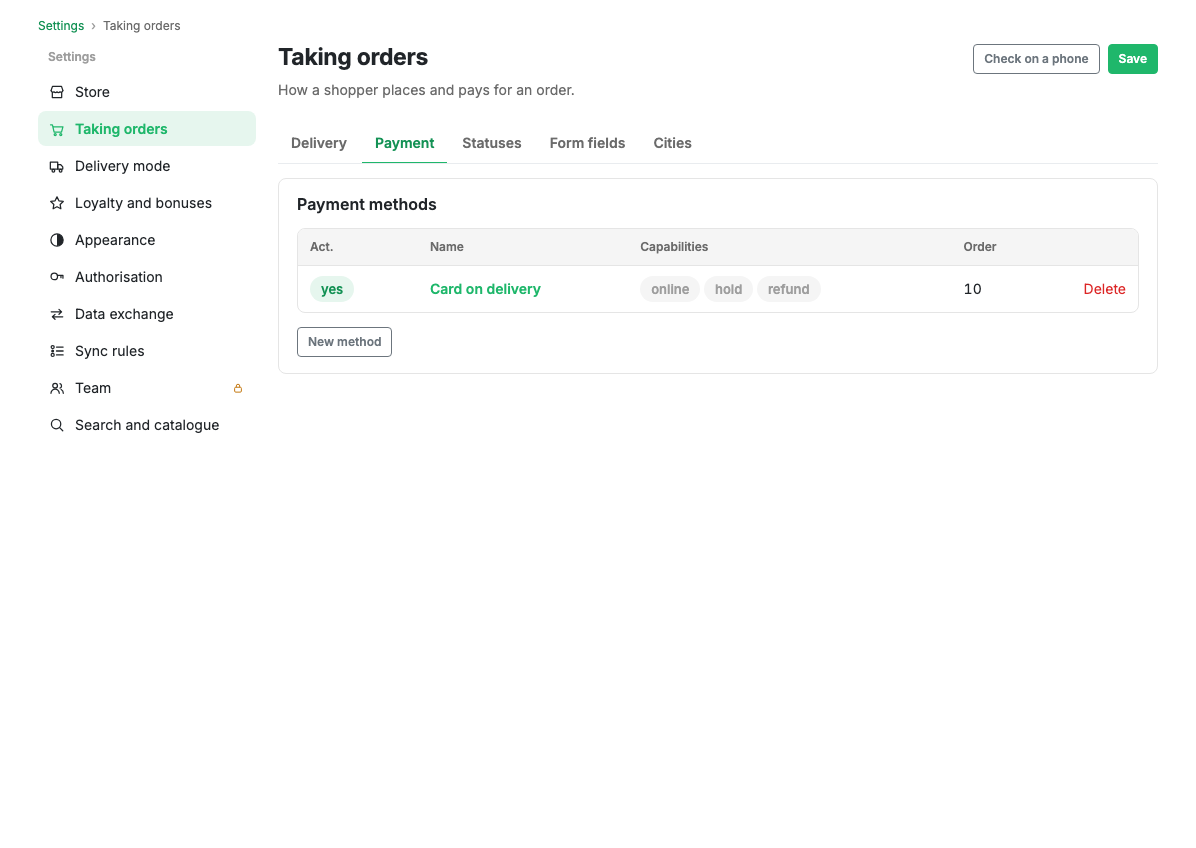
A table of payment methods: active, name, what the method can do, and ordering. The "What it can do" column shows whether it is online or pay-on-delivery, and whether it supports holds and refunds.
The "New method" button opens the payment method card.
Statuses
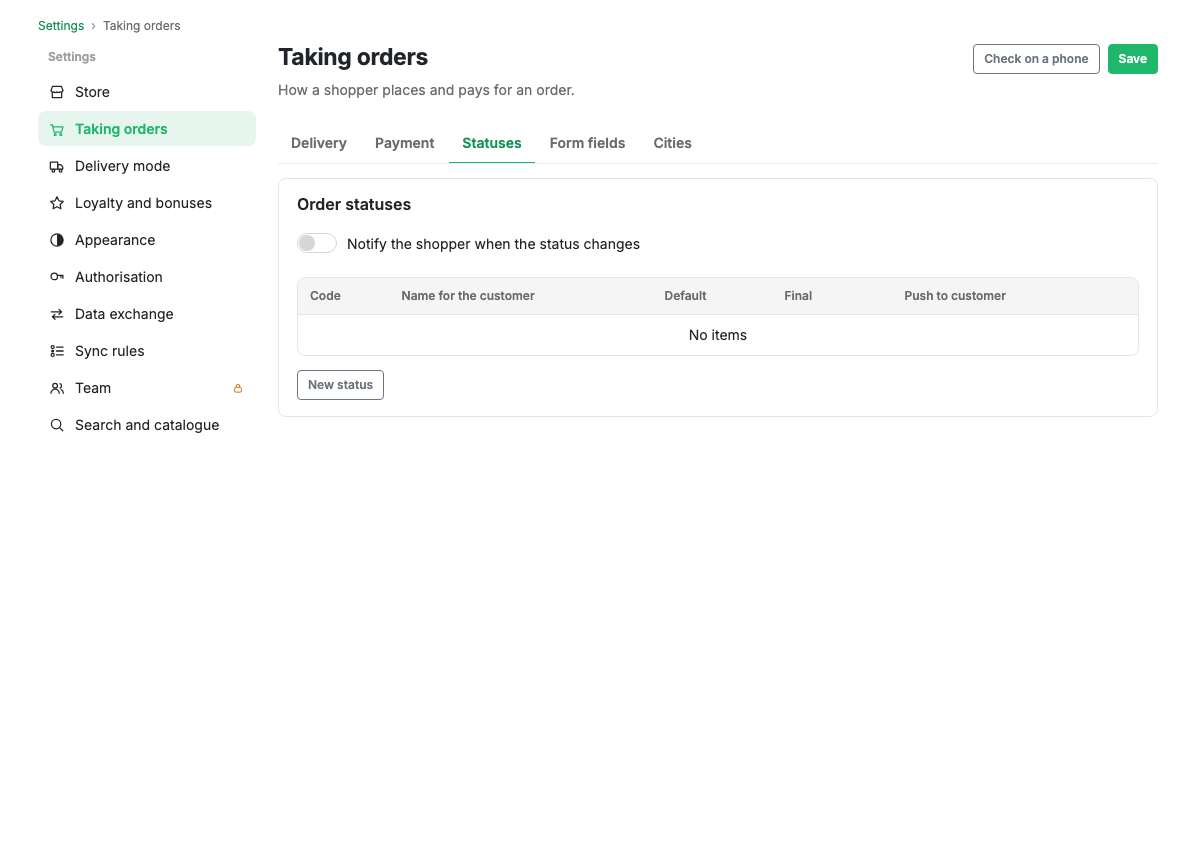
The stages an order passes through. A status has a code, a name for the shopper, default and final flags, and a mark saying whether the shopper gets a push when the order moves into it.
- Default is given to a freshly created order.
- Final closes the order: it moves no further.
- The "Notify the shopper about status changes" switch at the top turns notifications on across the board; the column decides which statuses actually send one.
A status is edited in a modal window; it has no page of its own.
Form fields
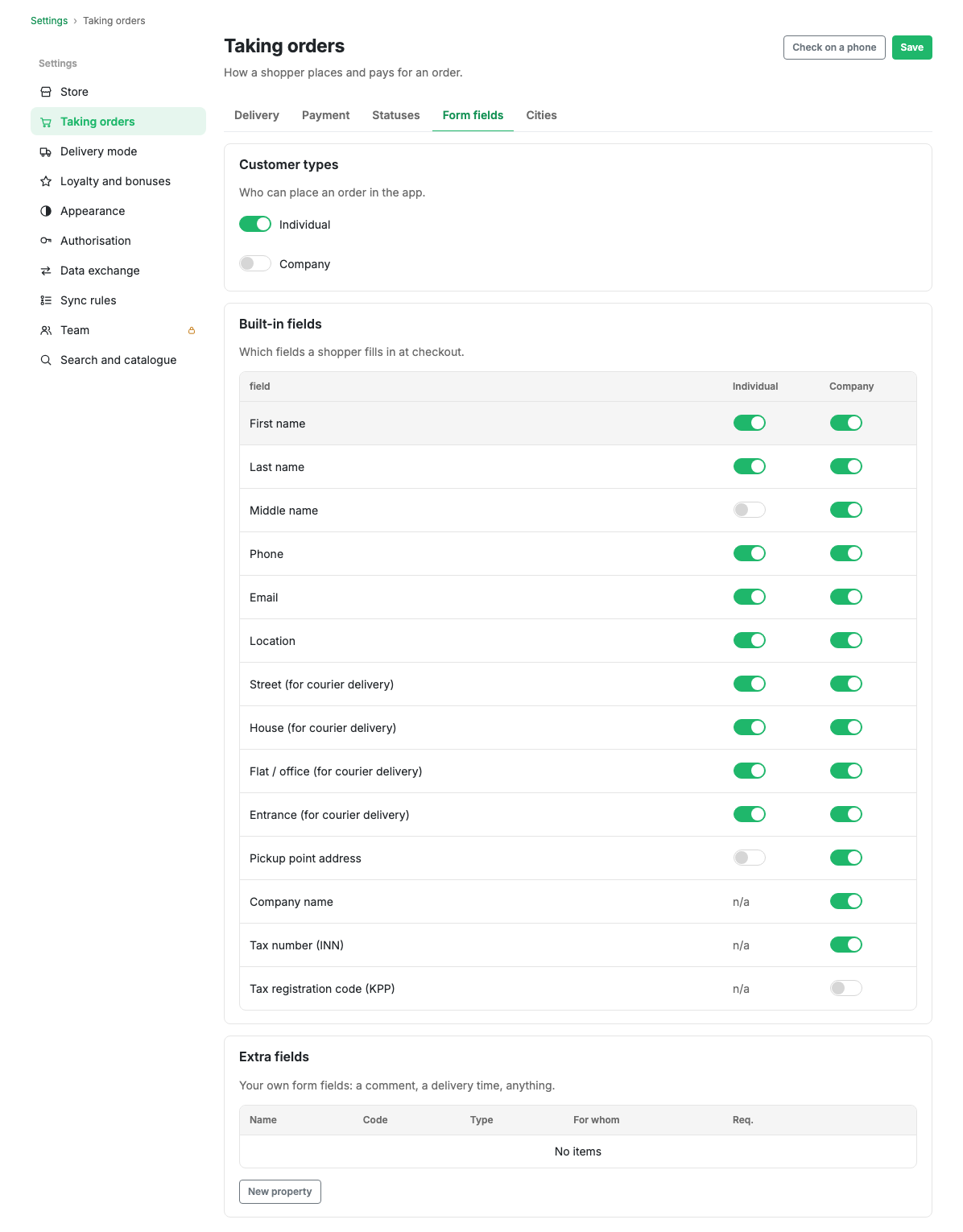
- Payer types: individual, legal entity or both. While legal entity is off, the company fields are not shown.
- Built-in fields: first name, surname, middle name, phone, email, location, courier address (street, house, flat, entrance), pickup point address, and for a legal entity the company name, tax number and registration code. Each field is switched on separately for individuals and for legal entities.
- Custom fields: your own form fields, for example a comment or a preferred delivery time. A field has a name, a code, a type, an audience and a required flag.
A custom field is edited in a modal window.
Cities
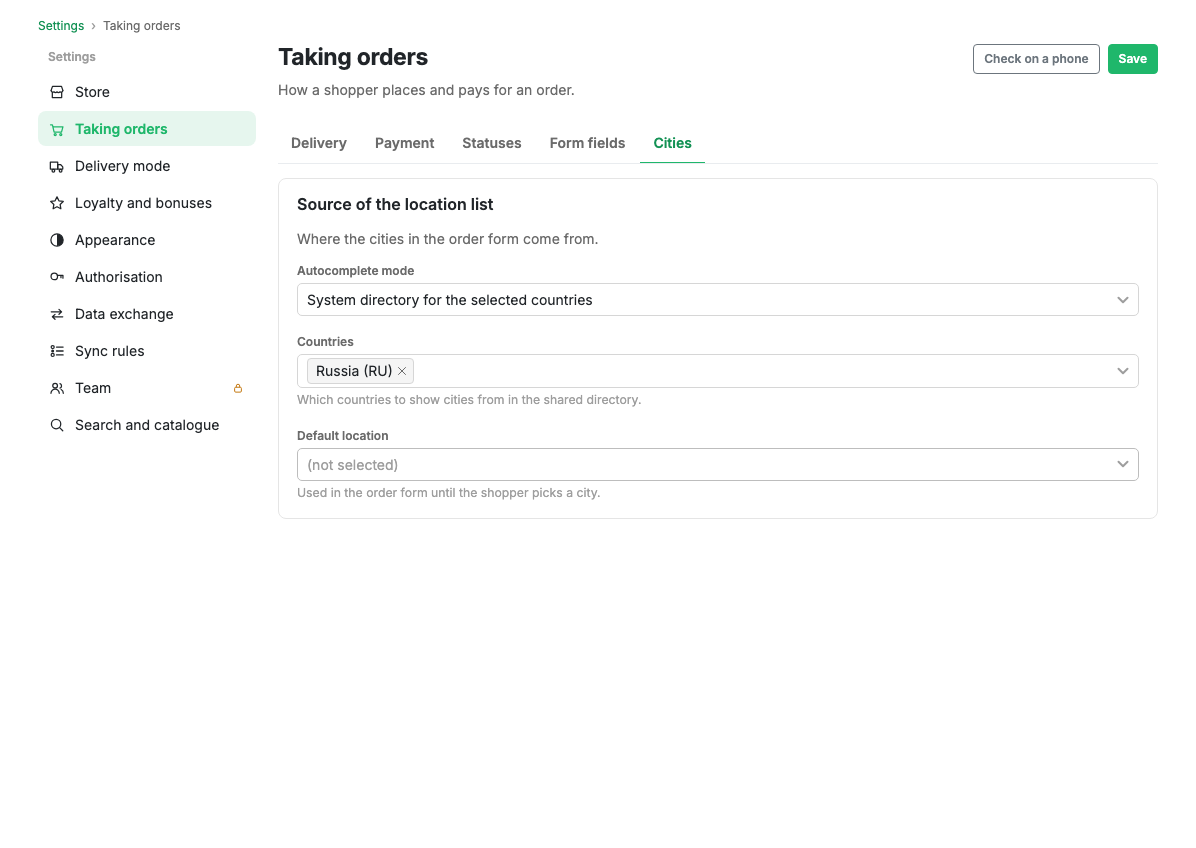
Where the list of cities for the order form comes from:
| Mode | Where cities come from |
|---|---|
| Preset list only | Your list from Custom locations |
| System directory for selected countries | The platform directory, limited to the chosen countries |
| Preset plus system | Your list first, then the platform directory |
| Own location list | Only your directory, without platform suggestions |
Below you choose the countries and the default location, which is filled into the form until the shopper picks a city themselves.
Limits and caveats
- The Save button is one per group: it saves changes across all five tabs at once.
- The "Open on phone" button opens the demo environment so you can see the checkout form through the shopper's eyes.
- A status that has orders in it cannot be deleted.