
Order list
Every order in the shop, with sets, filters and sorting. From here you open an order card and cancel orders.
How to open it
The rail, the Sales group, Orders.
What you can do
- Browse orders page by page
- Narrow them down quickly with sets and filters
- Sort by number, date and total
- Open an order card
- Cancel orders
- Jump to the order sync rules with the header button
The interface
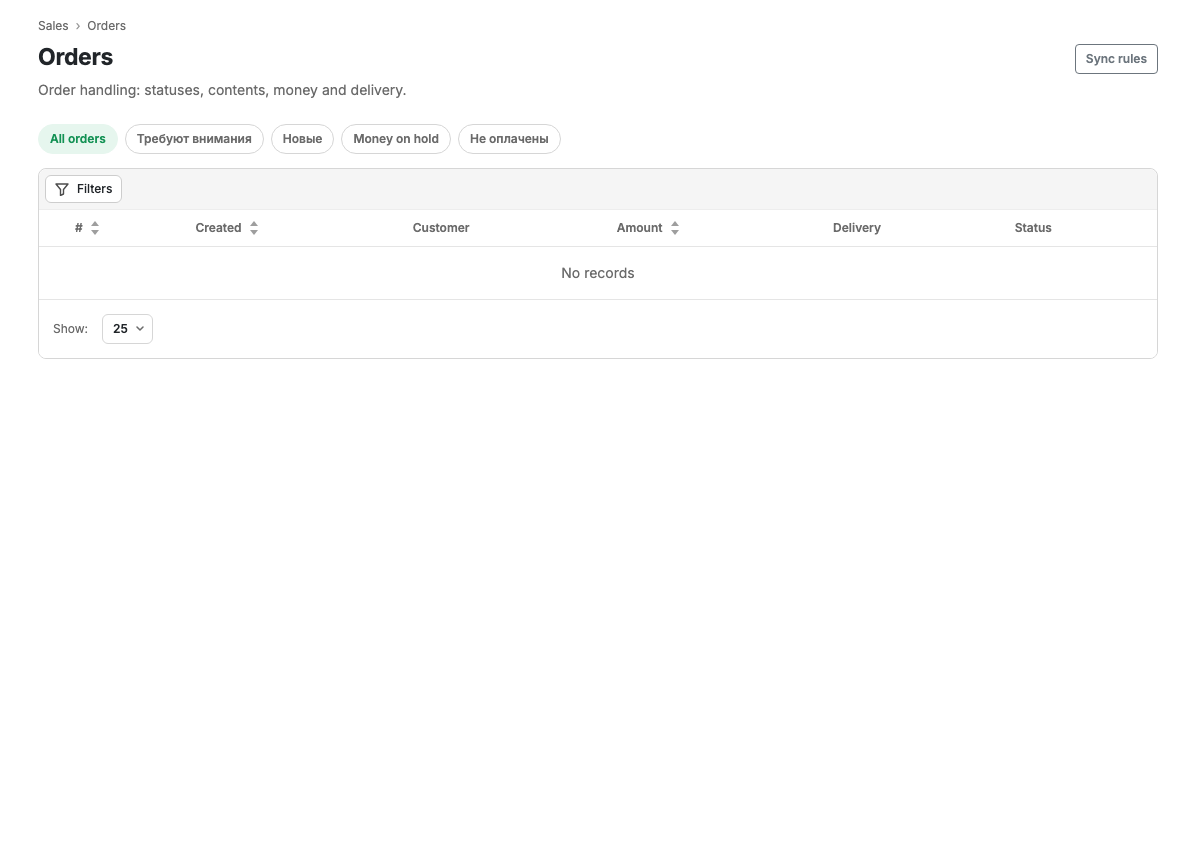
Sets
The buttons above the table are ready filters with counters:
| Set | What it shows |
|---|---|
| All orders | Everything your role can see |
| Need attention | Orders that require something right now |
| New | Orders in the default status that nobody has picked up |
| Funds held | Payment is on hold and waiting to be captured or released |
| Unpaid | The order is placed, the money has not arrived |
A set with a zero count is shown without a figure.
Table columns
| Column | Contents |
|---|---|
| No. | The order number. Clickable, opens the card |
| Created | Date and time of creation |
| Customer | Name and contact |
| Total | The order total |
| Delivery | The delivery method and the address or pickup point |
| Status | The current status. Changed on the order card, not in the list row |
Sorting is available by number, creation date and total.
Filters
The Filters button opens a panel: order number, customer (name, phone, email), status, payment method, delivery method, payer type, paid and cancelled flags, creation period.
Row actions
The menu at the start of a row opens the actions:
- View opens the order card.
- Cancel cancels the order after confirmation. The action is irreversible and unavailable for orders that are already cancelled.
Scenarios
Find unpaid orders
Press the Unpaid set above the table. A separate filter is not needed.
Cancel an order
- Open the action menu in the order row.
- Choose Cancel.
- Confirm.
Limits and caveats
- Cancelling an order is irreversible.
- Order statuses are configured in Taking orders, the Statuses tab.
- The "Sync rules" button in the header opens Order sync rules: where you decide which order fields the cabinet hands to the accounting system.
What a staff member sees
The list does not necessarily show every order in the shop. If a staff member works under a role with a limited visibility scope, they see only their own, for example the orders of one point of sale. The shop owner sees everything. This is configured in Staff roles.