
Promo code list
Every promo code in the shop in one table: the code, the discount, where it came from, whether it has been used and until when it works. This is also where you add a new code, generate a batch, upload a list from a file and export codes for a mailing.
How to open it
The rail, the Sales group, Promo codes.
What you can do
- Create promo codes one at a time
- Generate a batch of codes with identical terms
- Upload a ready list from a CSV file
- Export codes to CSV for a mailing
- Change the code, name, discount and activity of several promo codes at once
- Delete promo codes one by one or in bulk
The interface
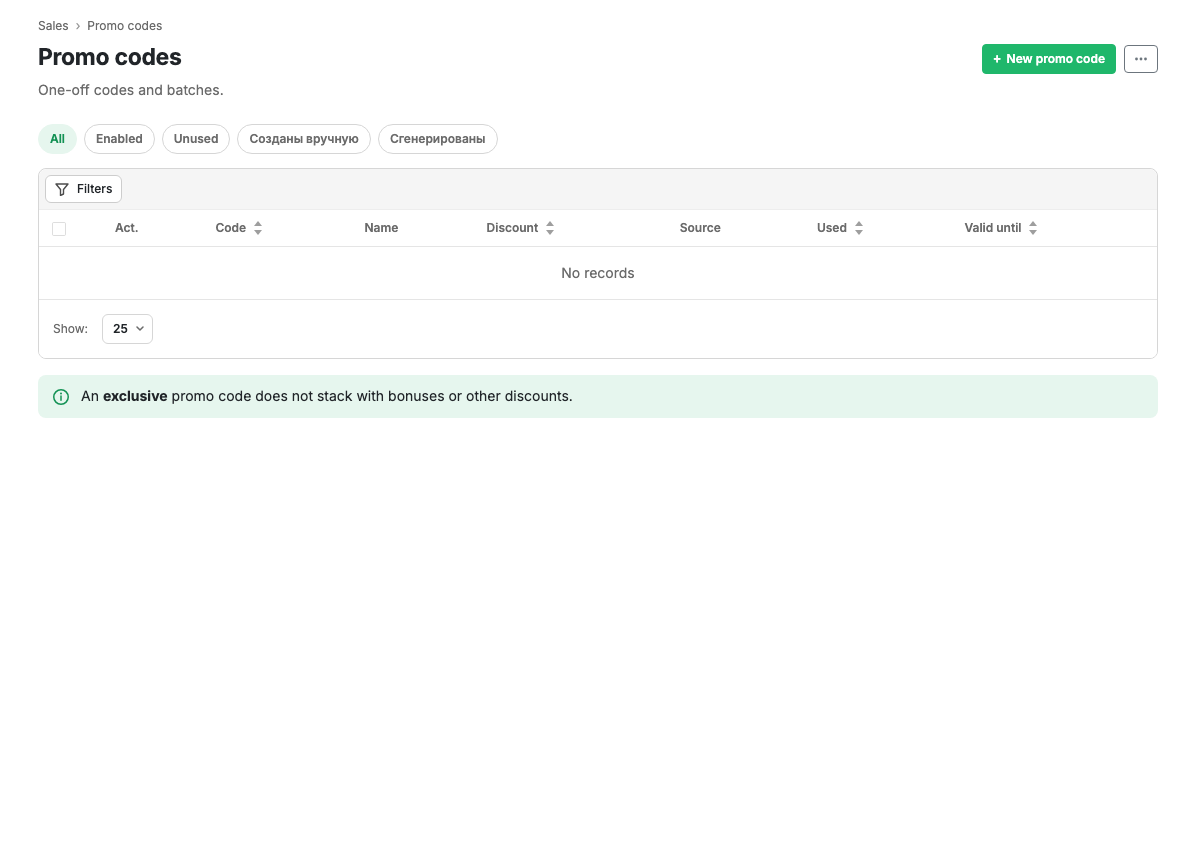
The New promo code button sits on the right of the header, with a "..." menu next to it holding the rest: batch generation, CSV import and export.
Sets
The buttons above the table are ready filters: all, enabled, unused, created by hand, generated.
The source set is handy for finding a particular batch: every code from one generation lands in it together.
Table columns
| Column | Contents |
|---|---|
| Act. | Whether the code works or is temporarily off |
| Code | The promo code itself. Clickable, opens the card |
| Name | The campaign name, visible only to you |
| Discount | The percentage or amount of the discount |
| Source | Created by hand, generated or imported |
| Used | The date of the last use |
| Valid until | The expiry date |
Sorting is available by code, discount, use and expiry date.
Filters
The Filters button opens filtering by code, name, activity, use, discount type, multi-use flag and source.
Bulk editing
Every row has a checkbox on the left. Tick the rows you need and a bar with the selection count appears at the bottom.
For selected rows, the Code, Name, Discount and Act. columns turn into input fields: edit the values straight in the table and press Save. The "Enable all" and "Disable all" buttons on the bar switch activity for every selected row at once, which is the convenient way to stop a finished campaign.
If even one row holds an invalid value, nothing is saved: the problem cells are highlighted with an explanation and the rest stay as they were.
The Delete button on the bar removes every selected promo code after confirmation.
Row actions
The row menu opens the promo code card and deletion with confirmation.
Scenarios
Export generated codes for a mailing
- Press the Generated set.
- Open the "..." menu and choose export.
- A CSV file with the codes and their terms is downloaded, ready to hand to a mailing.
The export respects the chosen set and filters: exactly what you see in the table is exported.
Quickly switch off a finished campaign
- Filter the campaign's promo codes, by name for example.
- Tick the rows you need, or all of them with the checkbox in the table header.
- Press "Disable all", then Save.
A disabled promo code stops applying in the app but stays in the list with its whole history.
Limits and caveats
- The number of active promo codes is limited by your plan. The current value and the ceiling are in Capabilities.
- An exclusive promo code stacks with neither bonuses nor other discounts.
- Deleting a promo code does not break old orders: the code and its discount amount stay on the order card, only without a link to the card.
- Case and hyphens make no difference: "sale-10" and "SALE10" are the same promo code. Codes are upper-cased automatically.
- A code cannot be repeated within a shop.