
Product list
The main catalogue page: every product in the shop, with sets, filters and search. This is where you add products, go to editing and change them in bulk.
How to open it
The rail, the Catalogue group, Products, the List tab.
What you can do
- Browse the catalogue page by page
- Narrow it down quickly with sets and filters
- Add a new product
- Edit selected products in bulk
- Delete products
- Start a catalogue import from a feed
The interface
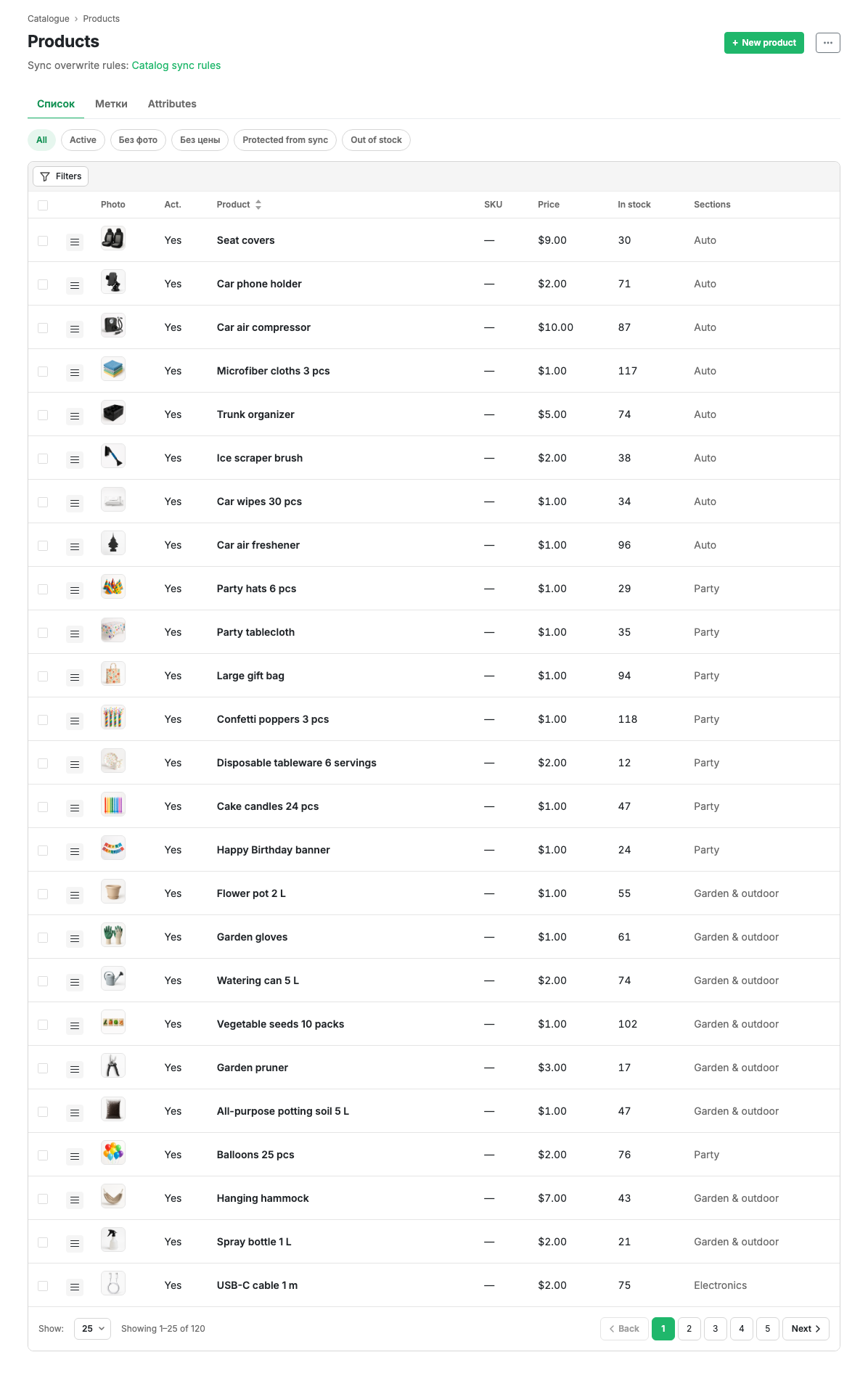
The page subtitle shows how many products are in the catalogue and links to Sync rules: they decide whether your edit survives the next sync.
Tabs
| Tab | What it covers |
|---|---|
| List | The products themselves |
| Labels | Coloured badges: bestseller, new, sale |
| Attributes | Product properties and catalogue filters |
Sets
The buttons above the table are ready filters with counters:
| Set | What it shows |
|---|---|
| All | The whole catalogue |
| Active | Products the shopper can see |
| No photo | Items without a single picture |
| No price | Items with no price set |
| Sync protected | Products with locks: sync no longer updates their fields |
| Out of stock | Items with zero stock |
Table columns
| Column | Contents |
|---|---|
| Photo | The main product image |
| Act. | Whether the product is shown in the app |
| Product | The name. Clickable, opens the card |
| Article | The article number, if set |
| Price | The product price |
| Stock | Stock in the warehouse |
| Sections | The catalogue sections the product sits in |
Sorting is available by name.
Point-of-sale context
If the shop has more than one point of sale, a point switch appears in the header. It is not a filter: the Price and Stock columns start showing the values of the selected point. The choice is remembered across catalogue pages.
Filters
The Filters button opens a panel for filtering by name, article, section, brand, label, activity, presence of a photo, price range and stock range.
Bulk actions
Tick products on the left and a bulk action bar appears above the table: show and hide, assign a label, move to a section, delete.
A bulk edit is marked as a merchant's manual edit. That means the changed fields stop being updated by sync. Exactly which fields get locked is set in Sync rules.
Row actions
The menu at the start of a row opens the product card, duplication and deletion.
Header buttons
- New product opens an empty product card.
- The "..." menu on the right holds the rest: catalogue import from a feed, export, and a link to sync rules.
Limits and caveats
- The number of products in the catalogue is limited by your plan. The current value and the ceiling are in Capabilities.
- A product with no price and no stock is not shown to shoppers even when it is active.