
CSV import
If the codes already exist, inherited from a previous system, printed on flyers or agreed with a partner, there is no need to type them in one by one. Upload the list as a file.
How to open it
In the promo code list choose import from the "..." menu.
What you can do
- Download a template file with filled-in examples
- Upload a list of promo codes from CSV
- Update the terms of codes that already exist
The interface
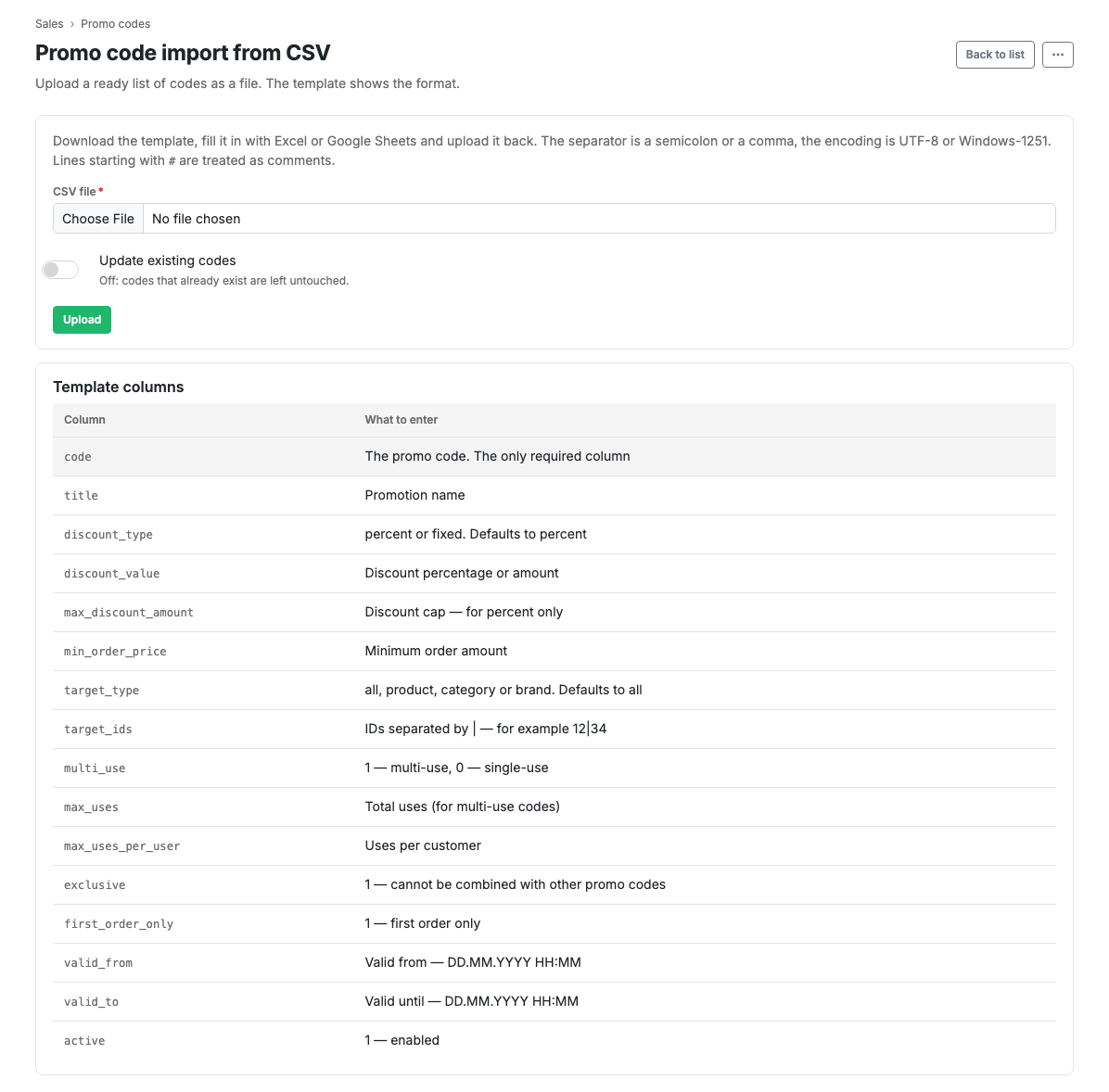
The Download template button gives you a ready file: a header row, a row of hints for each column and three filled-in examples. Open it in Excel or Google Sheets, replace the examples with your codes and upload it back.
The Update existing codes switch:
- off: codes that already exist in the shop are skipped and left untouched;
- on: their terms are overwritten with the data from the file.
It is off by default, so re-uploading the same file does not wipe the settings of working promo codes.
After the upload a summary is shown: how many codes were created, updated and skipped. If the file contained problem rows, they are listed with line numbers and reasons, while the rest are still loaded.
File columns
There is one required column, code. All the others may be left empty, in which
case defaults are used.
| Column | What to put in |
|---|---|
code |
The promo code. Required |
title |
The campaign name |
discount_type |
percent or fixed. percent by default |
discount_value |
The percentage or amount of the discount |
max_discount_amount |
The discount ceiling, for percent only |
min_order_price |
The minimum order value |
target_type |
all, product, category or brand. all by default |
target_ids |
IDs separated by a vertical bar, for example 12\|34 |
multi_use |
1 for multi-use, 0 for single-use |
max_uses |
Total uses, for a multi-use code |
max_uses_per_user |
Uses per shopper |
exclusive |
1 if it does not stack with other promo codes |
first_order_only |
1 for first order only |
valid_from |
Valid from, in DD.MM.YYYY HH:MM format |
valid_to |
Valid until, in the same format |
active |
1 if the code is on |
In yes/no columns, 1, yes, true and + are understood. An empty cell means
"no".
Scenarios
Move codes over from an old system
- Press "Download template".
- Delete the example rows, keeping the header row.
- Paste in your codes and terms.
- Save the file as CSV.
- Return to the import page, choose the file and press Upload.
- Check the summary: if there are rows with errors, fix them and upload again.
Limits and caveats
- Files up to 5 MB, up to 5,000 rows per upload.
- The separator is a semicolon or a comma, detected automatically. The encoding is UTF-8 or Windows-1251, so a file from a localised Excel reads without trouble.
- Rows where
codestarts with#count as comments and are skipped. That is why the hint row from the template can be left in place. - Duplicate codes within a single file are rejected with the line number.
- Rows with errors do not cancel the whole import: correct codes are loaded and the problem ones land in the error list.