
Post card
The form for creating and editing a post, an article or a news item. An existing post shows its ID next to the heading.
How to open it
- New post: the Create button on the Posts tab.
- Editing: click the post title in the list or use the Edit action.
What you can do
- Fill in the title, text and image of the post
- Control its activity and display period
- Attach related products
The interface
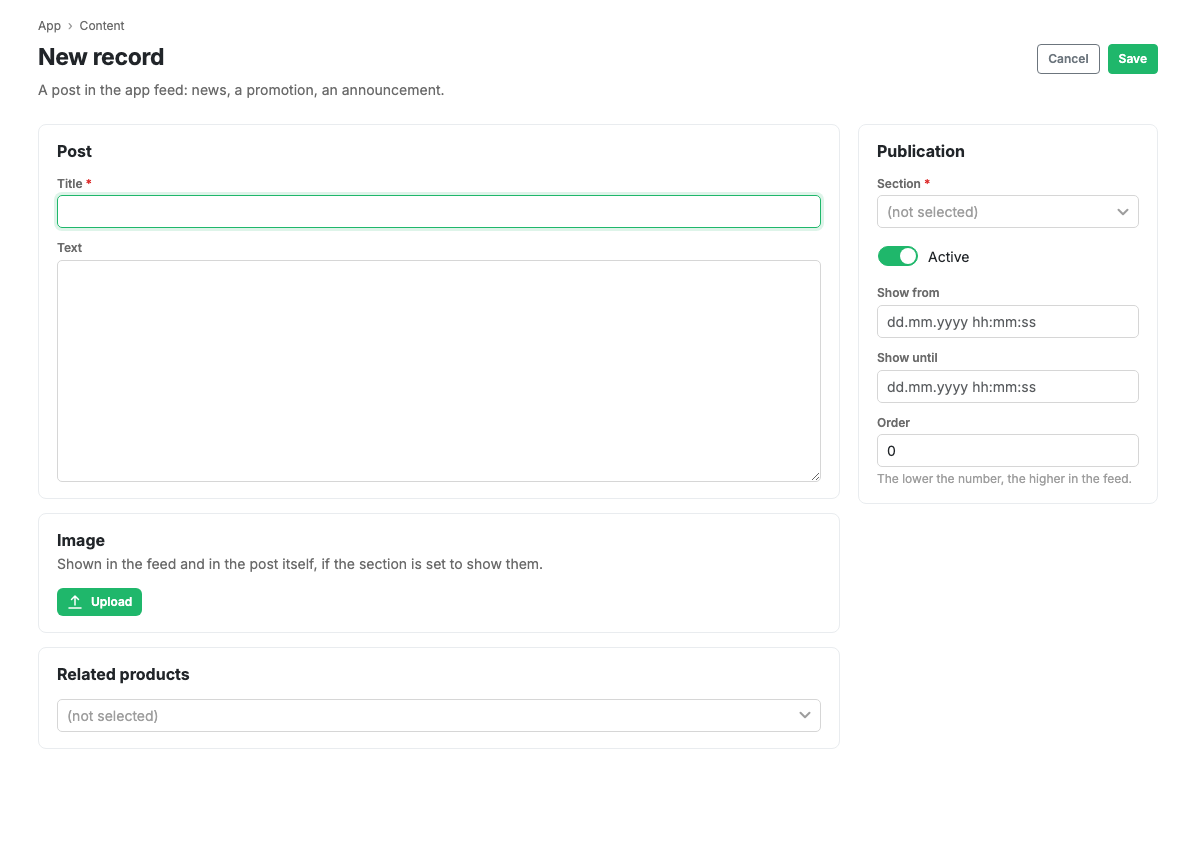
- Section: the post's section. Set on creation and not changed on the card.
- Active: the switch for post visibility in the app.
- Title: required.
- Activity start date and activity end date: the period during which the post is shown. They are taken into account if the section has the "Use activity dates" option switched on.
- Ordering: the display order of the post.
- Image: the post picture.
- Text: the body of the post.
- Related products: products shown alongside the post.
The Cancel and Save buttons are in the form header.
Scenarios
Create a post
- On the Posts tab press Create.
- Fill in the title and text.
- Set the display period and related products if needed.
- Press Save.
Related pages
Updated 04.09.2026 18:04
Was this page helpful?