
Catalogue screen
How the catalogue looks and behaves in the app: the appearance of sections, the product card in the list, the detail card, what can be done with a product and how availability is shown.
How to open it
The rail, the App group, Screens, the Catalogue card.
What you can do
- Choose the look of sections, the product list and the product card
- Control the display of prices, stock, ratings and labels
- Switch features on: comparison, favourites, barcode search
- Set the step for weighed products
- Decide what the shopper sees instead of a number in stock
The interface
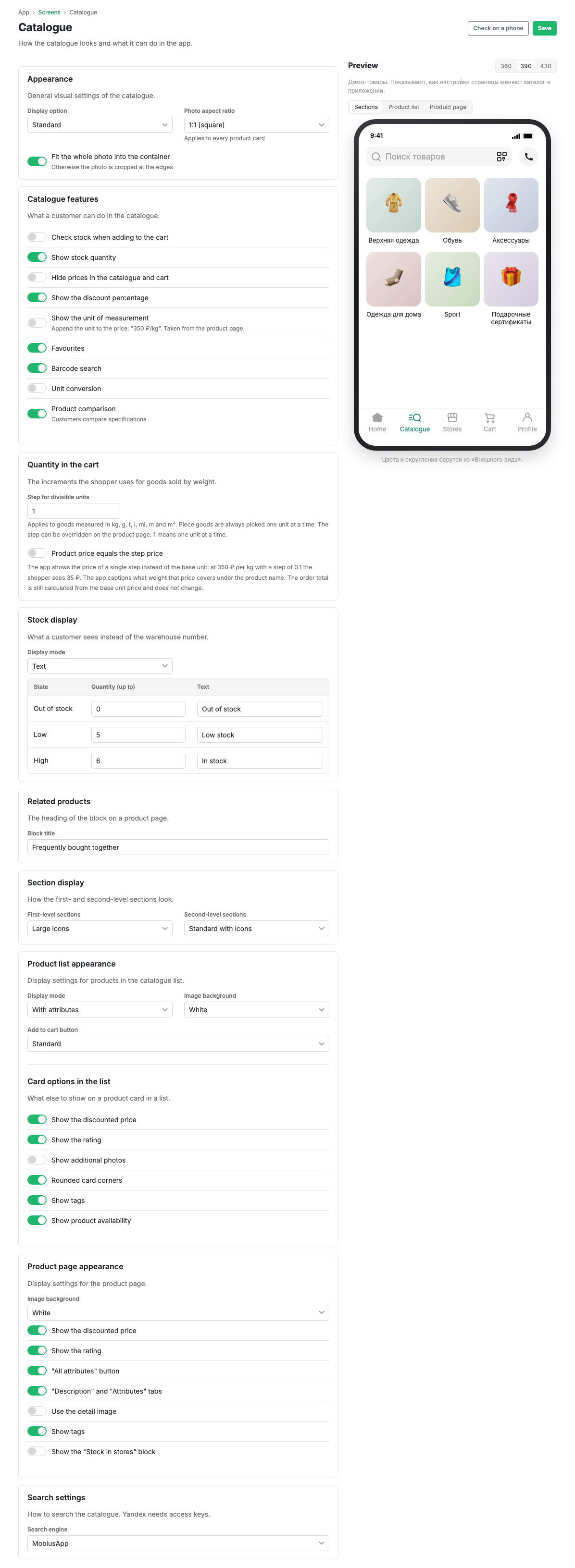
The page is built from blocks, with a preview on a phone mock-up on the right and a switch between sections, product list and product card.
Appearance
The catalogue layout and the aspect ratio of product photos. The "Fit the whole photo into the container" switch decides whether photos are cropped at the edges or shown in full.
Catalogue features
What the shopper can do in the catalogue:
- Respect stock when adding to the basket: do not allow more than the warehouse holds.
- Show product stock.
- Hide prices in the catalogue and basket: a storefront without prices, for wholesale shops and request-only catalogues.
- Show the discount percentage.
- Show the unit of measure: appends the unit to the price, "350 ₽/kg".
- Favourites.
- Barcode search.
- Unit conversion.
- Product comparison.
Quantity in the basket
The step by which a shopper picks a weighed product. The step for divisible units applies to products in kilograms, grams, tonnes, litres, millilitres, metres and square metres. Piece goods are always picked one at a time. The step can be overridden on a product card.
The "Product price = step price" switch changes what the shopper sees under the name: the price of one step instead of the price of a base unit. The order total is still calculated from the base unit price and does not change.
Stock display
What the shopper sees instead of a number in stock. The mode is either numeric or textual. In the textual mode you set three thresholds and their captions: out of stock, low, plenty.
Related products
The heading of the related products block on a product card: "Often bought together" or your own wording.
Section display
How first- and second-level sections look: large icons, the standard view with icons and other options.
Product list appearance
The card layout in the list, the image background and the style of the add to basket button.
List card options
What else to show on a product card in the list: the discounted price, the rating, extra photos, rounded card corners, labels, availability.
Product card appearance
The parameters of the detail card: image background, discounted price, rating, the "All attributes" button, the Description and Attributes tabs, the detail image, labels, the "Stock in stores" block.
Search parameters
What to search the catalogue with. The same thing is configured in Search and catalogue; the field is duplicated here because search is part of how the catalogue behaves.
Scenarios
Show availability in words rather than numbers
- In the "Stock display" block choose the textual mode.
- Set the thresholds: 0 for "Out of stock" and 5 for "Only a few left", for example.
- Write the captions.
- Press Save.