
Getting around
A rail of sections on the left, a search box at the top, the page itself below. There is nothing else to remember: every section can be reached two ways, through the menu and through search.
The rail
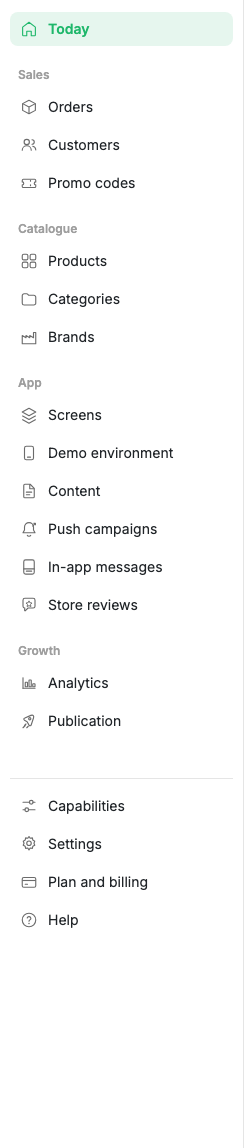
Items are grouped by what you are busy with.
| Group | What is inside |
|---|---|
| Sales | Orders, Customers, Promo codes |
| Catalogue | Products, Categories, Brands |
| App | Screens, Demo environment, Content, Push campaigns, In-app messages, Store reviews |
| Growth | Analytics, Publication |
Today sits on its own at the top. Capabilities, Settings, Plan and billing and Help are separated at the bottom.
Help is not a page but a call to support chat: the button opens a conversation window over the cabinet.
The rail can be collapsed to icons only. Group captions then disappear and section names show on hover.
Cabinet search
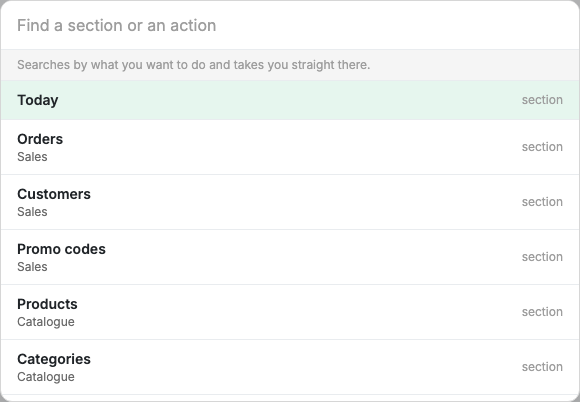
The search box in the header opens with Ctrl + K (⌘ + K on a Mac). It finds
sections, individual actions and settings that have no menu item of their own.
It is the way to reach, for example:
- Points of sale, Staff, Roles, Partner access;
- Integrations and Sync rules;
- settings tabs: payment methods, order statuses, order form fields;
- common actions: Add product, Create promo code, Import catalogue from YML.
Search by the words of the task rather than the exact section name: "payment", "pickup", "barcode", "terms". The label on the right of a result says what it is: a section, a setting, a list or an action.
The header
Besides search, the header holds:
- Open on phone, which opens the demo environment with a QR code;
- the bell with cabinet notifications;
- the account menu with a link to your profile and sign out.
Point-of-sale context
If the shop has more than one point of sale, a point switch appears in the header of catalogue pages. It is not a filter: it changes what the columns mean. Pick a point and the Price and Stock columns show that point's values rather than shop totals.
The choice is remembered and survives navigation between catalogue pages.
Plan locks
Sections that are not in your plan do not disappear from the cabinet. They stay visible with a note saying which plan opens them. The full map of what already works and what comes next is in Capabilities.