
Today
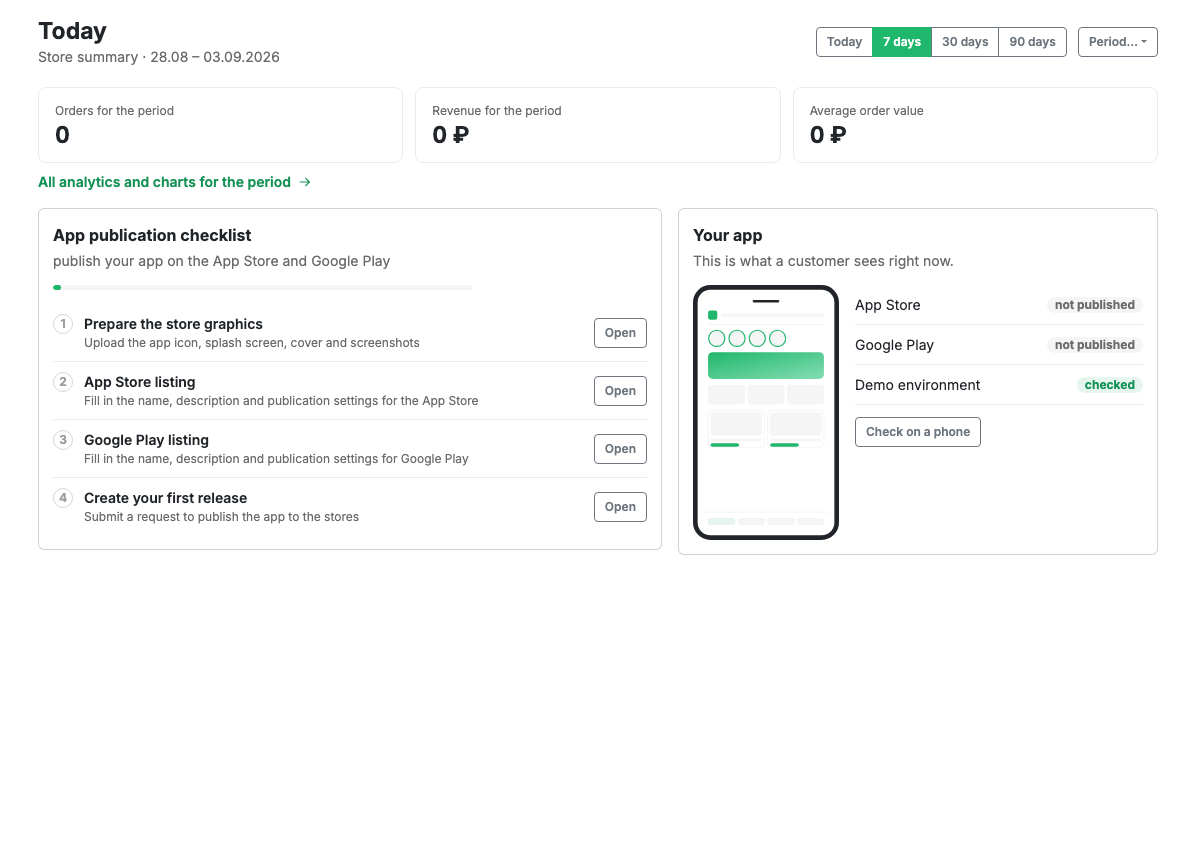
The cabinet start screen. It answers two questions: what happened in the shop over the chosen period, and what is left before the app reaches the app stores.
How to open it
The first item in the rail, and the cabinet address without a section.
The period summary
Three figures at the top: orders for the period, revenue for the period and average order value. The period is switched with the buttons on the right: today, 7 days, 30 days, 90 days. The Period button opens a custom date range.
The link "All analytics and charts for the period" opens Analytics with the period already applied.
The publication checklist
Until the app is published, a four-step checklist sits on the left:
- Fill in the graphics: icon, splash screen, cover and screenshots.
- Fill in the App Store details.
- Fill in the Google Play details.
- Create the first release.
The Open button next to a step goes to the right tab of Publication. The bar above shows how many steps are already done.
Once the app is published, the checklist is replaced by a shop summary.
Your app
On the right, a card with a phone mock-up and the current state:
- App Store and Google Play: published or not, with a link to the app page once it is out;
- Demo environment: whether you have tried the app on a phone.
The "Open on phone" button opens the demo environment.
Limits and caveats
- The figures count shop orders, not till receipts: an order cancelled after checkout drops out of revenue.
- While there are no orders, the cards show zeros. That is not a loading error.