
Payment method
The card of a payment method the shopper chooses at checkout: pay on delivery or online payment through a payment gateway.
How to open it
Settings, the Taking orders group, the Payment tab, the "New method" button. To change an existing method, click its name in the table.
What you can do
- Create pay-on-delivery and online payment methods
- Switch a method on and off and set its order
- Choose a handler and configure its parameters
- Limit a method by payer type and location
The interface
The heading and the Cancel and Save buttons are at the top. A saved method shows its ID next to the heading.
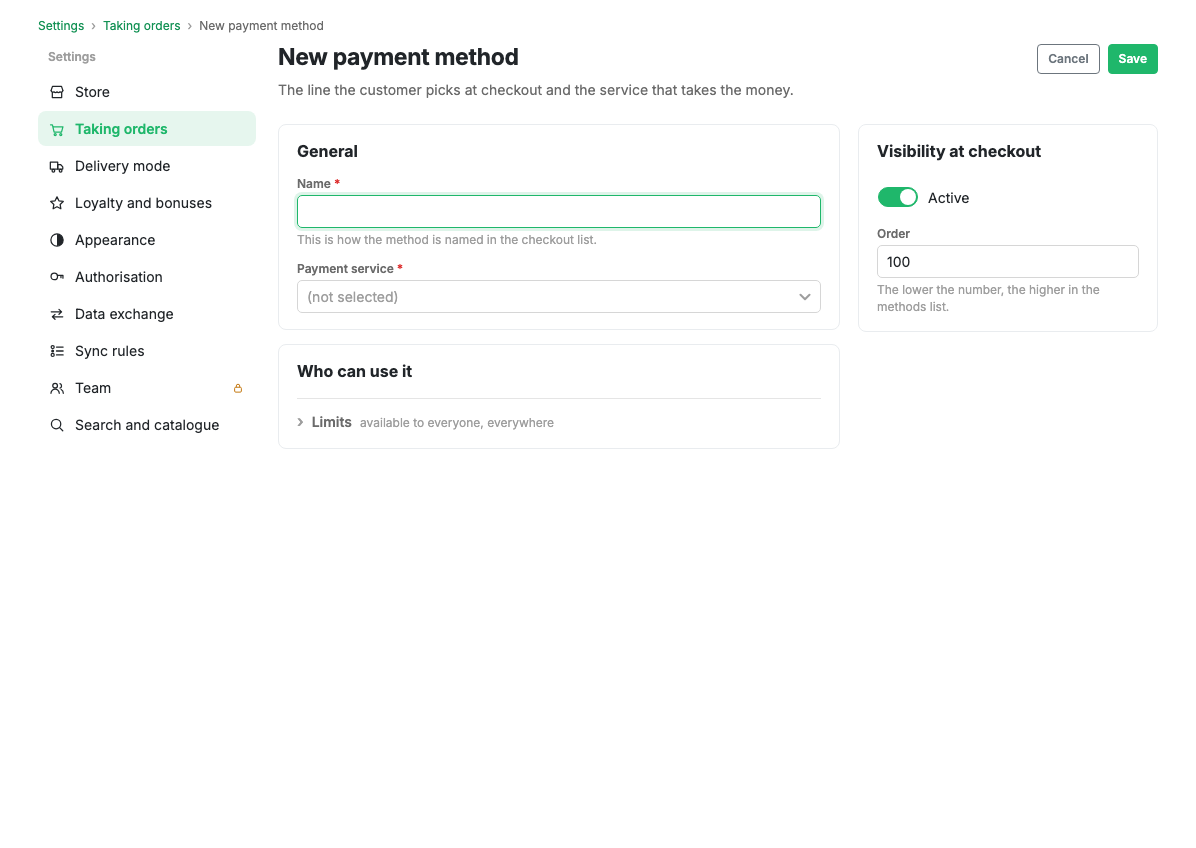
Main fields
- Name: required, shown to the shopper.
- Ordering: the position in the list. The smaller the number, the higher.
- Active: the switch for showing the method in the app.
Handler
- Handler: required. It defines the payment logic. Online handlers are marked with an "online" badge: after checkout the shopper is redirected to a payment page. Handlers without online acquiring mean payment on delivery.
Handler parameters
The set of fields depends on the handler. For online acquiring these are usually terminal details or access keys. Online handlers show the payment notification address (webhook) in a hint: the one the payment provider asks you to give it.
The address is ready as soon as you pick the handler: there is no need to save the payment method first. That matters for providers that require a notification address while the shop is being created, before they issue you the keys.
Holding funds (two-stage payment)
The switch is available with several acquirers. With holding on, the shopper's money is held and only captured after you confirm it on the order card: you can capture the whole amount, capture less (if something was out of stock) or release the funds entirely.
This is convenient where the contents of an order are settled during picking: groceries, weighed goods, made-to-order items. If an order always ships exactly as placed, holding only adds work: the money has to be confirmed by hand.
Next to it you set the hold period in days. Most providers do not return this period in their response, so the cabinet counts down from your value: enter the period agreed with your bank, usually 7 days. When the period runs out, the money returns to the shopper automatically.
Before switching it on, check that the two-stage scheme is allowed on the provider's side as well: some enable it on the terminal, some agree it with the bank, some additionally require a "funds held" notification to be turned on. Otherwise the payment will be declined.
Some acquirers also carry a separate "Partial capture allowed" switch: not every shop is permitted to capture less than the held amount. Turn it on only if you have that permission, otherwise the cabinet will offer an action the bank will reject.
Acquirers outside Russia
There is a handler for shops working in Kazakhstan, Kyrgyzstan and Uzbekistan. The shopper goes to the provider's payment page and returns to the app after paying.
What needs filling in:
- Merchant ID and secret key from the provider's console. The secret key is also called the shop's payment password there.
- Contract country: the provider has a separate server in each country, and keys issued in one do not work in another.
- Payment currency: the one your contract is in.
- Test mode: payments go through without money moving. It has to be turned on at the provider as well; the switch here alone is not enough.
The notification address does not need to be given anywhere: the cabinet passes it with every payment.
This handler can refund the shopper through the payment provider, in full or in part, straight from the order card.
It does not support holding funds yet. If your contract has the two-stage scheme enabled, turn it off: otherwise money would only be held, the cabinet would not show the order as paid, and after a few days the hold would lapse.
Restrictions
- Available payer types: who the method is available to: individuals, legal entities or both.
- Included locations: where the method is available. Empty means everywhere.
- Excluded locations: where the method is not available.
Scenarios
Add payment on delivery
- Press "New method" on the Payment tab.
- Give the name and choose a handler without online acquiring.
- Press Save.
Connect online payment
- Press "New method" and choose an online handler.
- Copy the notification address from the hint: it is available already, no need to save the method.
- Create the shop in the payment provider's console and give it that address.
- Come back to the cabinet, fill in the handler parameters (keys, terminal details) and save the method.
The order matters because some providers will not let you create a shop without a notification address, and will not issue keys without a shop.
Limits and caveats
- The same notification address works for all your payment methods with that provider: if you have two shops there (for individuals and for legal entities), give it in both. The cabinet works out which one a payment belongs to.
- Methods connected earlier may have an older style of address stored at the provider. It keeps working and does not need changing.
- The availability of individual payment gateways can depend on your plan.
- Holding changes the usual course of an order: the order counts as unpaid until you confirm the capture. Orders with held funds are gathered in the order section under the "Funds held" set.