
Section card
A content section: news, articles, any other feed of posts in the app. The card sets the section name and how its feed looks.
How to open it
- New section: the Create button on the Sections tab.
- Editing: click the section name in the list.
What you can do
- Set the section name, code and order
- Configure what is visible in the post feed and on a post page
- Turn on publishing by date
The interface
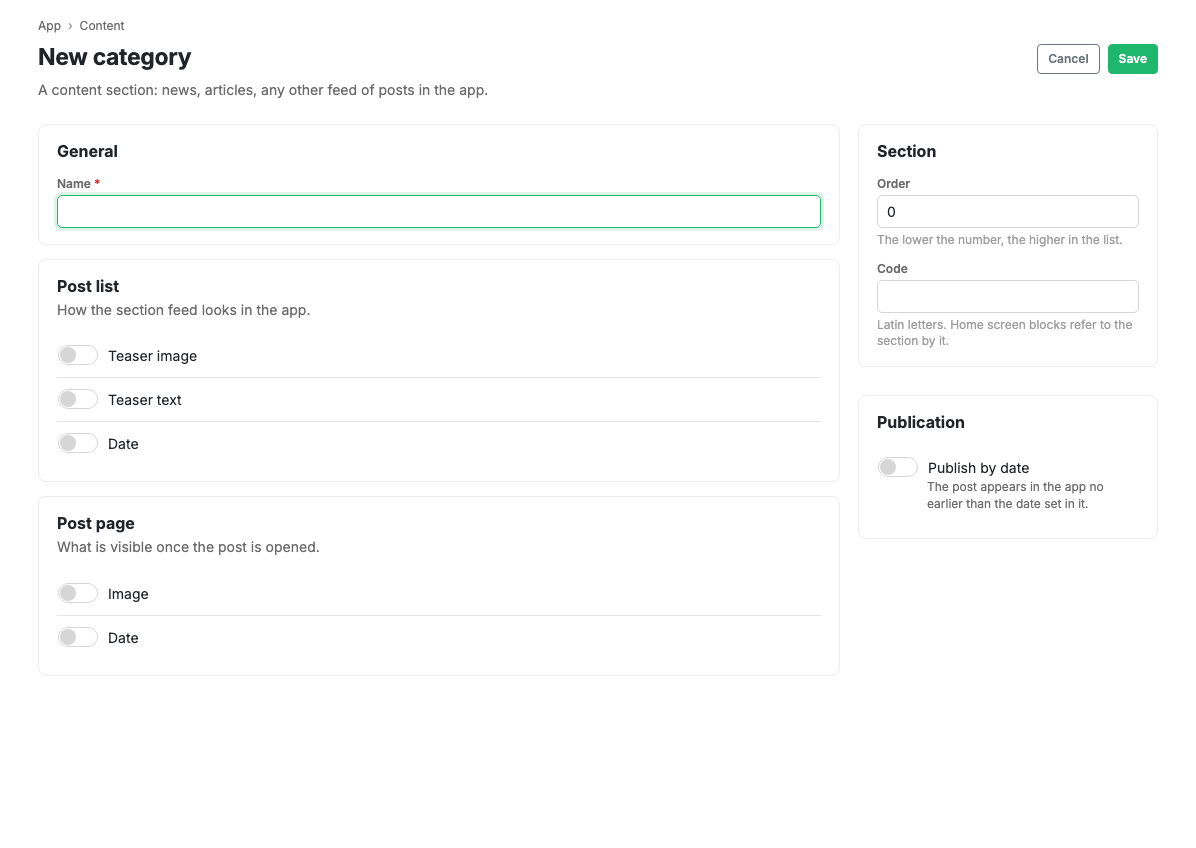
General
The section Name, a required field.
Post feed
How the section feed looks in the app. Three switches:
- Teaser image: show the post image in the feed.
- Teaser text: show a fragment of the text.
- Date: show the date under the post.
Post page
What is visible once a post is opened:
- Image: the picture on the post page.
- Date: the date on the post page.
Section
- Ordering: the smaller the number, the higher the section in the list.
- Code: Latin letters. Home screen blocks refer to the section by it.
Publishing
Publish by date: a post appears in the app no earlier than the date given on its card. While the switch is off, dates on posts have no effect.
Scenarios
Set up a news feed
- Press Create on the Sections tab.
- Enter a name, for example "News".
- Turn on the teaser image and the date so the feed reads as a news feed.
- Set a code if you plan to show the section as a home screen block.
- Save.
Related pages
Updated 04.09.2026 18:04
Was this page helpful?