
Location card
The form for creating and editing a place in the app's own location directory.
How to open it
- New: the "New location" button in the location list. Opened inside a region or district, the new entry is created nested there.
- Editing: click the name or use the Edit action in the list.
What you can do
- Fill in the name, type and country of a place
- Attach a place to a parent location
- Match a place to the cities of delivery carriers
The interface
The heading and the Cancel and Save buttons are at the top. The form is split into two tabs.
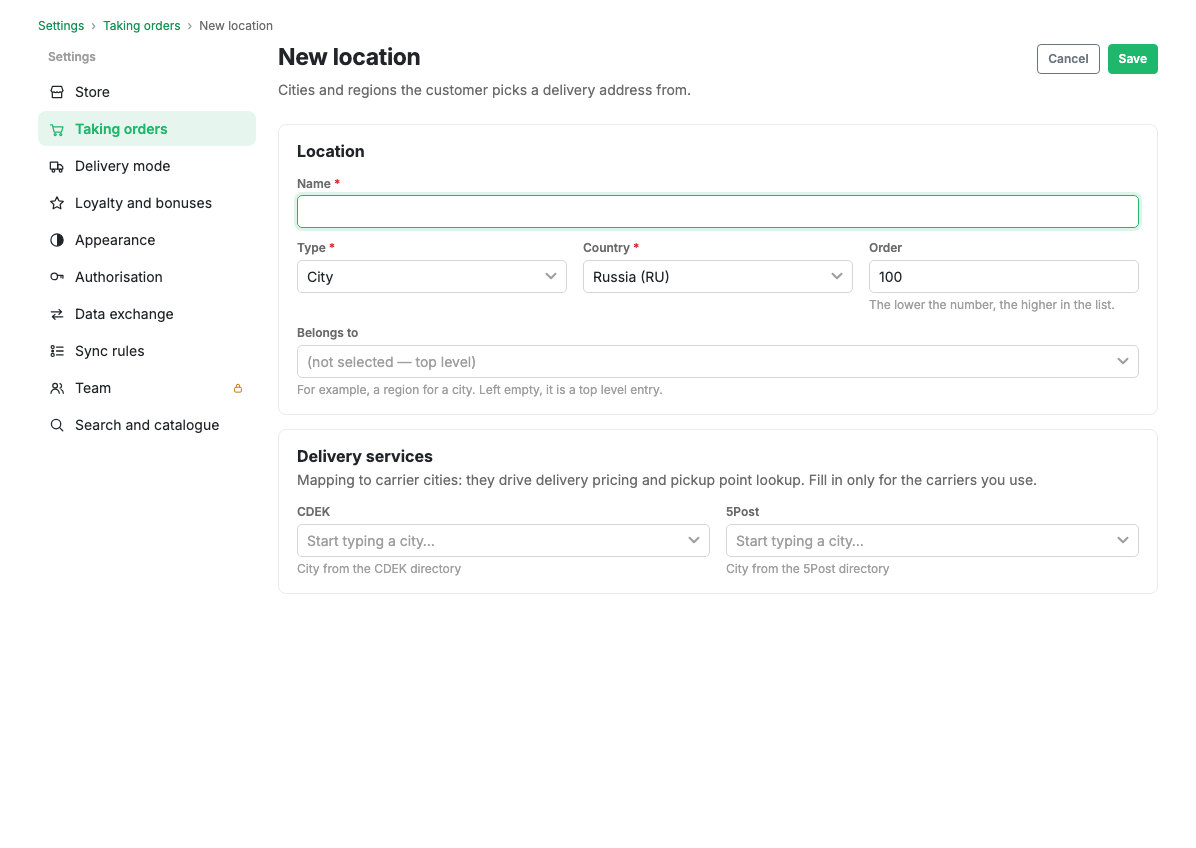
The General tab
- Name: required.
- Ordering: the position in the list.
- Type: region, district, town or village. Required.
- Country: required.
- Parent location: the place this one sits inside. Left empty, the entry stays at the root level.
The Delivery carriers tab
Matching to carrier city directories. It is used to calculate delivery and to offer pickup points. Only cities present in a carrier's imported directory are available.
Scenarios
Add a city and link it to carriers
- Create a location with the Town type.
- Choose the parent region or district.
- On the Delivery carriers tab, match the city to the carrier directories you use.
- Press Save.
Limits and caveats
- Matching to carrier cities is only needed when the corresponding integrations are in use.
- Some carriers only offer cities that made it into the directory at import time.
Related pages
Updated 04.09.2026 18:04
Was this page helpful?