
Product card
The card holds all the data of one product. It opens both when creating a new product and when editing an existing one. The data is split across seven tabs: general, attributes, prices, stock, related products, product variants and files.
How to open it
- New product: the "New product" button in the product list.
- Editing: click the product name in the list.
What you can do
- Fill in the product data and upload photos
- Assign categories and product labels
- Set free-form attributes
- Set prices and stock per point of sale
- Attach related products
- Group variants of one product into a single card
- Attach files: manuals, documents
The interface
At the top are the heading and the Cancel and Save buttons. An existing product shows its ID next to the heading.
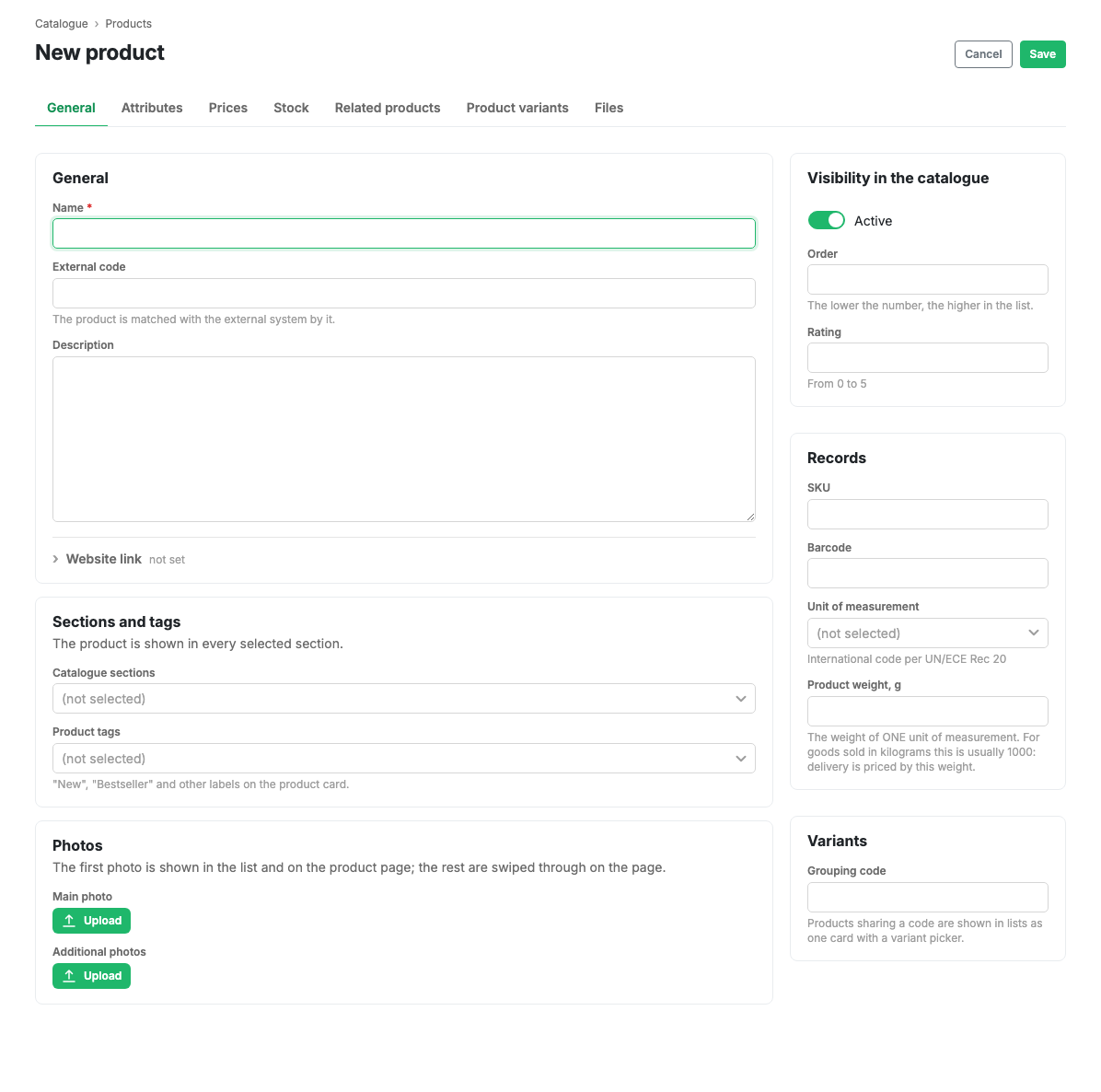
The General tab
The tab is laid out in blocks: substance on the left, visibility and accounting on the right.
General
- Name: required.
- External code: the product is matched to an external system by it.
- Description: up to 4,000 characters.
- Website link: an expandable field with a link to the product page on your own site, optional.
Sections and labels
- Catalogue sections: the product is shown in every selected section.
- Product labels: "New", "Bestseller" and other badges on the product card, see Labels.
Photos
The main photo is shown in the list and on the card; the rest are swiped through inside the card.
Catalogue visibility
- Active: show the product to shoppers.
- Ordering: the smaller the number, the higher the product in the list.
- Rating: from 0 to 5.
Accounting
- Article and barcode.
- Unit of measure: the international code from UN/ECE Rec 20.
- Product weight in grams. This is the weight of ONE unit of measure: for a product sold by the kilogram it is usually 1,000. Delivery is calculated from this weight.
Variants
- Grouping code: products with the same code are shown in lists as a single card with a variant picker.
The Attributes tab
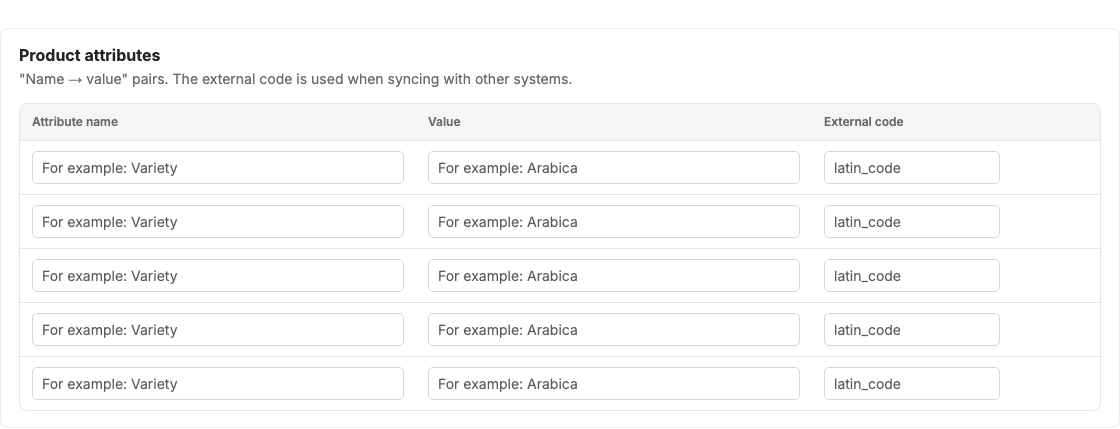
A table of free-form name and value pairs, for example "Grade → Arabica". The external code of a row is needed by integrations. These are attributes of one specific product; the shared directory of properties for catalogue filters is configured separately, see Attributes.
The Prices tab

The price is set per point of sale. A point's row takes the price, the currency, the discounted price and the discount period. If there are no points of sale yet, add them in Points of sale.
The Stock tab

The quantity in each point of sale's warehouse. It drives availability in the app.
The Related products tab

Products shown on the current product's page in the app. Added by searching by name.
Below is the Returnable packaging block. It appears only for shops in the water delivery profile with returnable packaging switched on.
- Packaging product: a product from the same catalogue that goes into the basket together with the current one. Its price is the deposit.
- Packaging units per product unit: how many units of packaging one unit of the product needs, usually 1.
Empty bottles handed back to the courier reduce the packaging to be paid for. A product cannot be its own packaging, and a product used as packaging should not be sold as a separate line: its quantity in the basket is calculated automatically.
The Product variants tab
Products grouped with the current one by grouping code. In catalogue lists such a group is shown as a single card, and the shopper picks a variant inside it: size, colour, volume.

The tab shows who else is in the group and which variant counts as the main one. The grouping code itself is set on the General tab.
The Files tab

Attached documents and manuals. Each file can be given a title, which is shown instead of the file name.
Scenarios
Create a product
- Press "New product" in the product list.
- On the General tab fill in the name and the rest of the data.
- Set prices and stock per point of sale if needed.
- Press Save.
Change a price at one point of sale
- Open the product card.
- Go to the Prices tab.
- Change the price in the row of the point you need.
- Press Save.
States
- If saving fails validation, the card switches to the tab holding the first error and highlights the problem fields.
- If no points of sale exist, the Prices and Stock tabs say there is nowhere to put a price yet.
- Fields marked with a lock are no longer updated by sync: they were edited by hand. Which fields behave that way is decided by Sync rules.