
Data exchange
A summary of where products come into the shop from and where orders go. Five tabs: what comes from where, integrations, YML import, webhooks and API tokens.
How to open it
Settings, the Data exchange group.
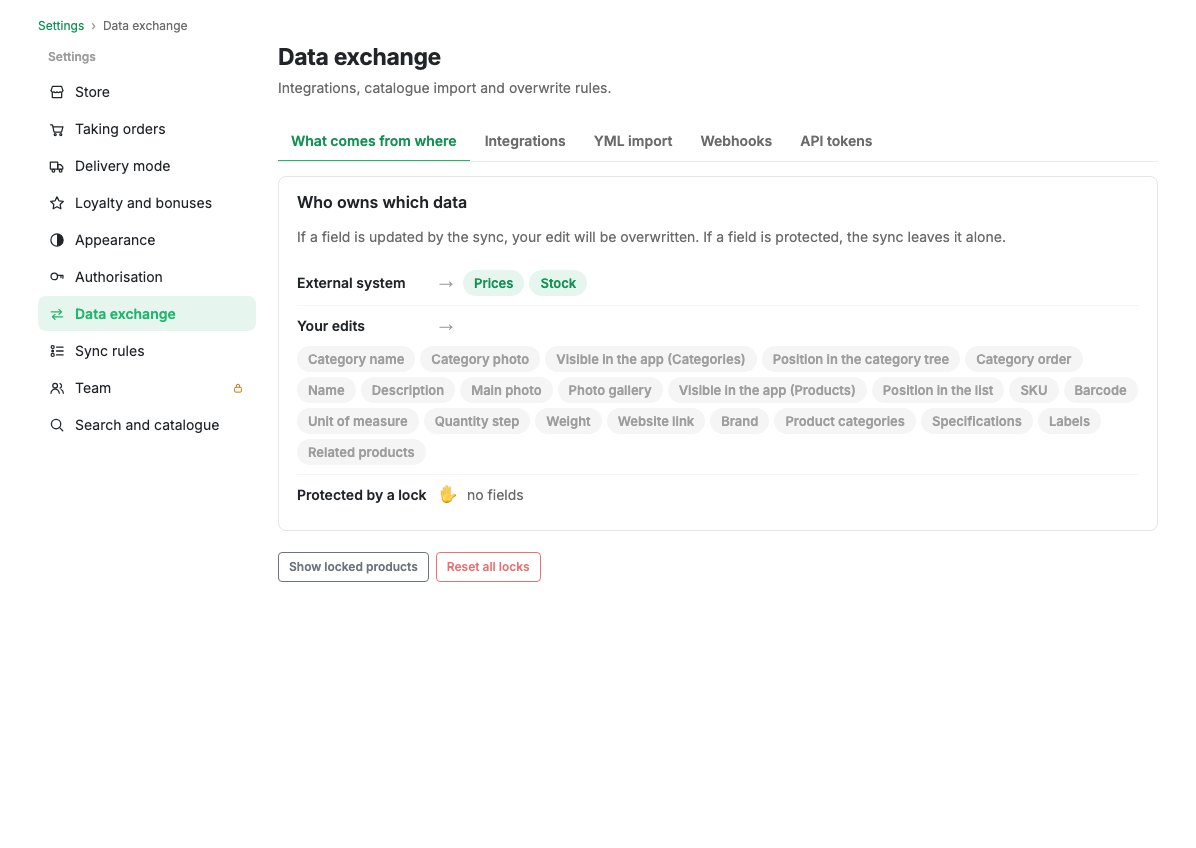
What comes from where
The first tab answers the question "why did my edit disappear". Catalogue fields are laid out in three rows:
- External system: these fields are updated by sync, and your edit will be overwritten. Prices and stock go here by default.
- Your edits: sync does not touch these fields. Names, descriptions, photos, visibility, ordering and everything else substantive.
- Protected by a lock: fields of specific products that you edited by hand, and that sync has not updated since.
The "Show locked products" button opens the list of such products; "Reset all locks" removes the protection at once and hands the fields back to sync.
Who owns what is configured on the neighbouring Sync rules page. This tab is only a summary.
Integrations
A list of external systems and the state of each: connected, disconnected, waiting for the module, sync error, or not available on your plan. This is also where the pairing code for a module comes from. See Integrations.
YML import
Loading the catalogue from a feed: by link or as a file, once or on a schedule. See YML import.
Webhooks
App events delivered to your address: new order, status change, payment. This is where subscriptions are created and the signing secret is taken from. Details for a developer are in Webhooks.
API tokens
Keys for external programs that work with the catalogue and orders directly. A token is shown once, when it is created: save it straight away, after that it can only be reissued. How to use them is described in Merchant API.
Limits and caveats
- API tokens and webhooks are opened by plan.
- A token gives access to the shop's catalogue and orders. If it leaks, revoke it and issue a new one.