
Message list
Every message in the shop, and the templates they are conveniently created from.
How to open it
The rail, the App group, In-app messages.
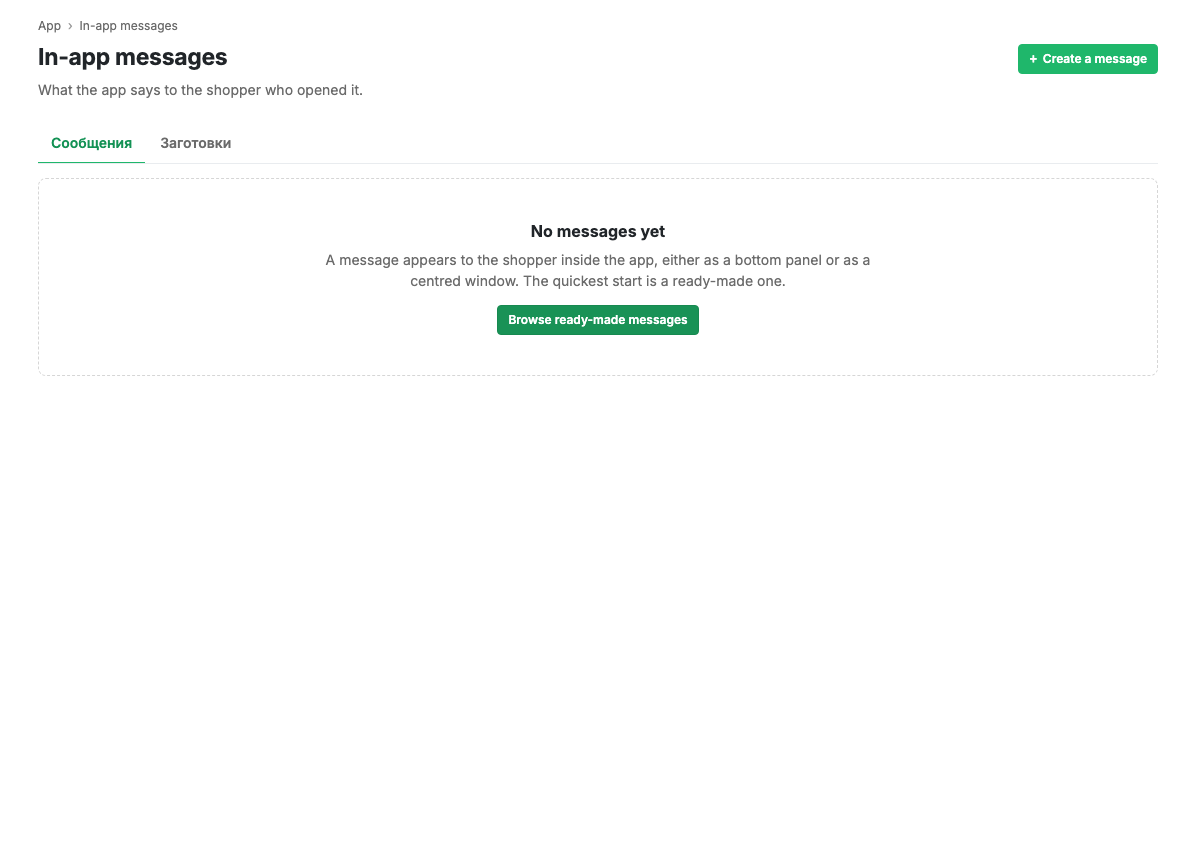
What the list shows
A message row shows a thumbnail of the format, the name, the display condition (trigger, audience and frequency on one line), the format (Bottom panel or Centre window) and a display switch.
The page subtitle counts how many messages are on out of those created.
What you can do
- Switch a message on and off without opening it.
- Open the message card with the Edit button.
- Delete a message.
- Create a message with the button in the page header.
- Reorder messages by dragging: if two messages match at once, the higher one is shown.
Templates
The second tab holds ready messages for common cases: a first-order discount, an explanation of bonuses, delivery terms, maintenance, a review request. A template is created with one button, after which its text is edited as usual.
The review request is created switched off: you first need to fill in the app store page addresses, otherwise the button leads nowhere.
Related pages
Updated 04.09.2026 18:04
Was this page helpful?