
Sync rules
Two parties can maintain a catalogue: you by hand in the cabinet, and an external system over sync. This page decides which of them owns each field.
How to open it
Settings, the Sync rules group. The Catalogue tab covers products and sections, the Orders tab covers order fields.
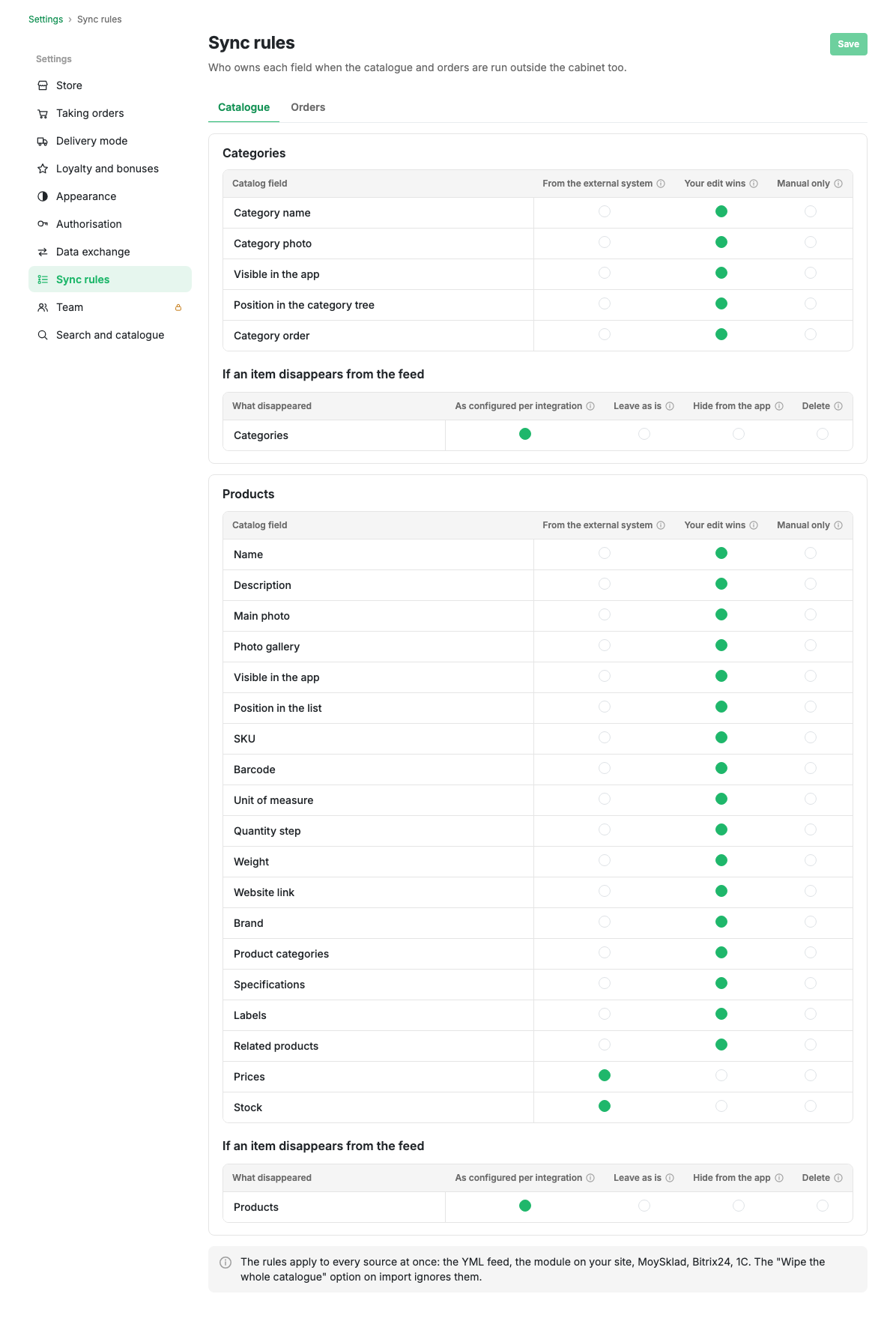
Three field modes
| Mode | What it means |
|---|---|
| From the external system | Sync always overwrites the field. An edit in the cabinet lasts until the next export |
| Manual edit wins | Sync updates the field until you touch it. Once you edit it by hand, the field is locked and sync leaves it alone |
| Manual only | Sync never touches the field, not even on the first import |
The default is arranged like this: substance (names, descriptions, photos, ordering) is set to "manual edit wins", while prices and stock are set to "from the external system". Text belongs to you, money and availability to the accounting system.
Section fields
Name, photo, visibility in the app, position in the tree and section ordering.
Product fields
Name, description, main photo, gallery, visibility in the app, position in the list, article number, barcode, unit of measure, quantity step, weight, website link, manufacturer, product sections, attributes, labels, related products, prices and stock.
If an item disappears from the export
A separate row for sections and for products, with four options:
- As configured in the integration: the source decides, behaviour does not change.
- Leave as is: the item stays in the catalogue and in the app.
- Hide from the app: the item stays in the cabinet but the shopper does not see it.
- Delete: the item is removed from the catalogue.
Limits and caveats
- Rules apply to every source at once: the YML feed, a module on your website, MoySklad, Bitrix24, 1C. There are no per-source rules.
- The "Clear the whole catalogue" option on import bypasses the rules: it deletes the catalogue entirely before loading.
- Locks on individual products are visible on the product card and are removed there, or in bulk on the "What comes from where" tab in Data exchange.