
Custom locations
Your own directory of places. The shopper picks a city from it at checkout when the settings use your own location list. The directory is hierarchical: districts sit inside regions, and towns and villages inside districts.
How to open it
Settings, the Taking orders group, the Cities tab. The list appears when a mode using your own location directory is selected.
What you can do
- Keep your own list of places
- Build a hierarchy: region, district, town or village
- Match places to the cities of delivery carriers
- Create, edit and delete locations
The interface
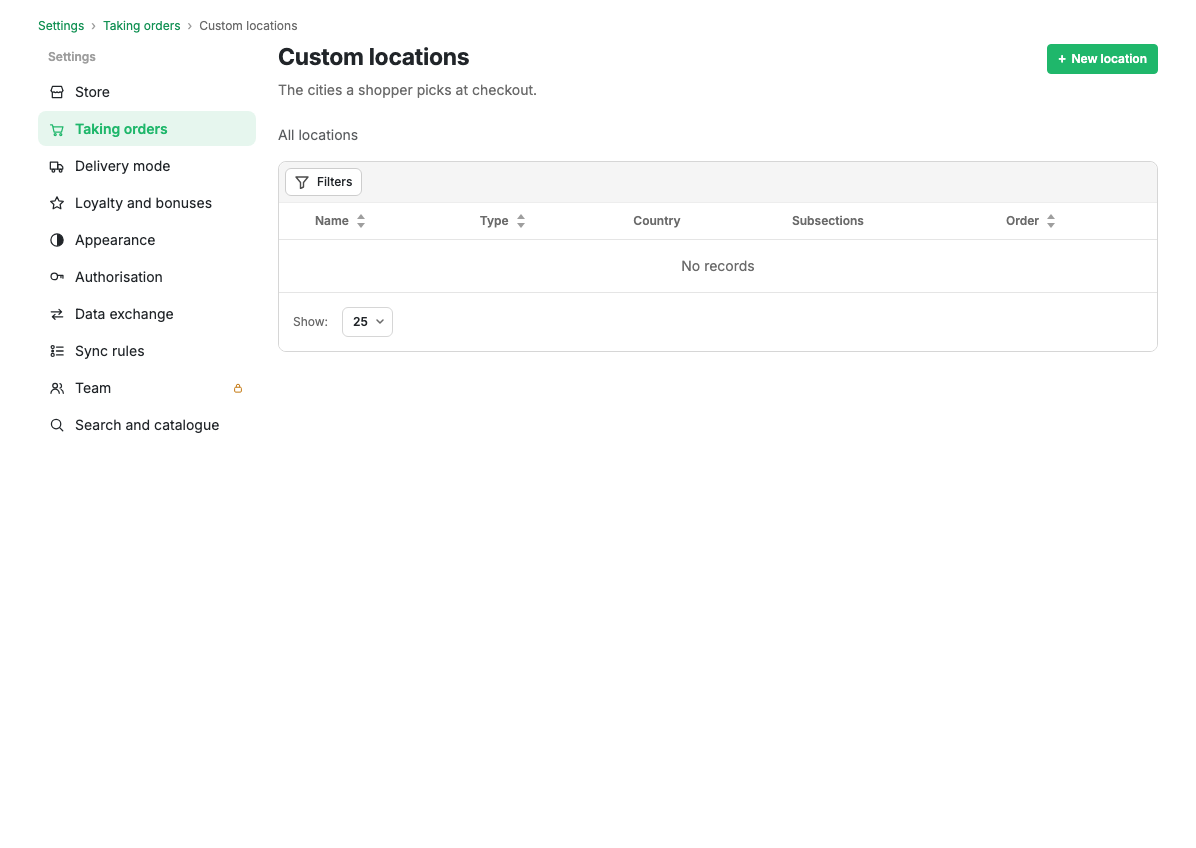
Under the heading are breadcrumbs for the current nesting level. To go inside a region or district, press Open in the Subitems column or use the "Open subitems" action.
The New location button creates an entry at the current level.
Table columns
| Column | Contents |
|---|---|
| Name | The name of the place. Clickable, opens the card |
| Type | Region, district, town or village |
| Country | The country of the place |
| Subitems | An "Open (N)" button if there are nested entries |
| Ord. | The position in the list |
Filters
Filtering is available by name, country and type (region, district, town, village).
Row actions
- Edit opens the location card.
- Open subitems moves to the nested level.
- Delete removes the location after confirmation. Nested subitems lose their link to it.
Scenarios
Build a city directory
- Create top-level locations, regions for example.
- Open a region through Subitems.
- Add districts and towns inside it.
Limits and caveats
- The directory is used only when the Cities tab is set to a mode using your own location list.
- Deleting a parent does not delete nested entries, but they lose their link to it.
Related pages
Updated 04.09.2026 18:04
Was this page helpful?