
Custom HTML blocks
A piece of markup placed inside a ready app screen: a size guide under a product description, a promotion banner above the Add to basket button, delivery terms in the basket. A block is written in HTML, CSS and JavaScript and can drive the app: open sections, add products to the basket, show sheets.
The section is meant for someone who can write markup. If you have nobody like that, everything else in the app is configured without code.
How to open it
The Screens hub, the HTML blocks card. It is marked "For developer". The page also opens through cabinet search by the words "html" or "custom code".
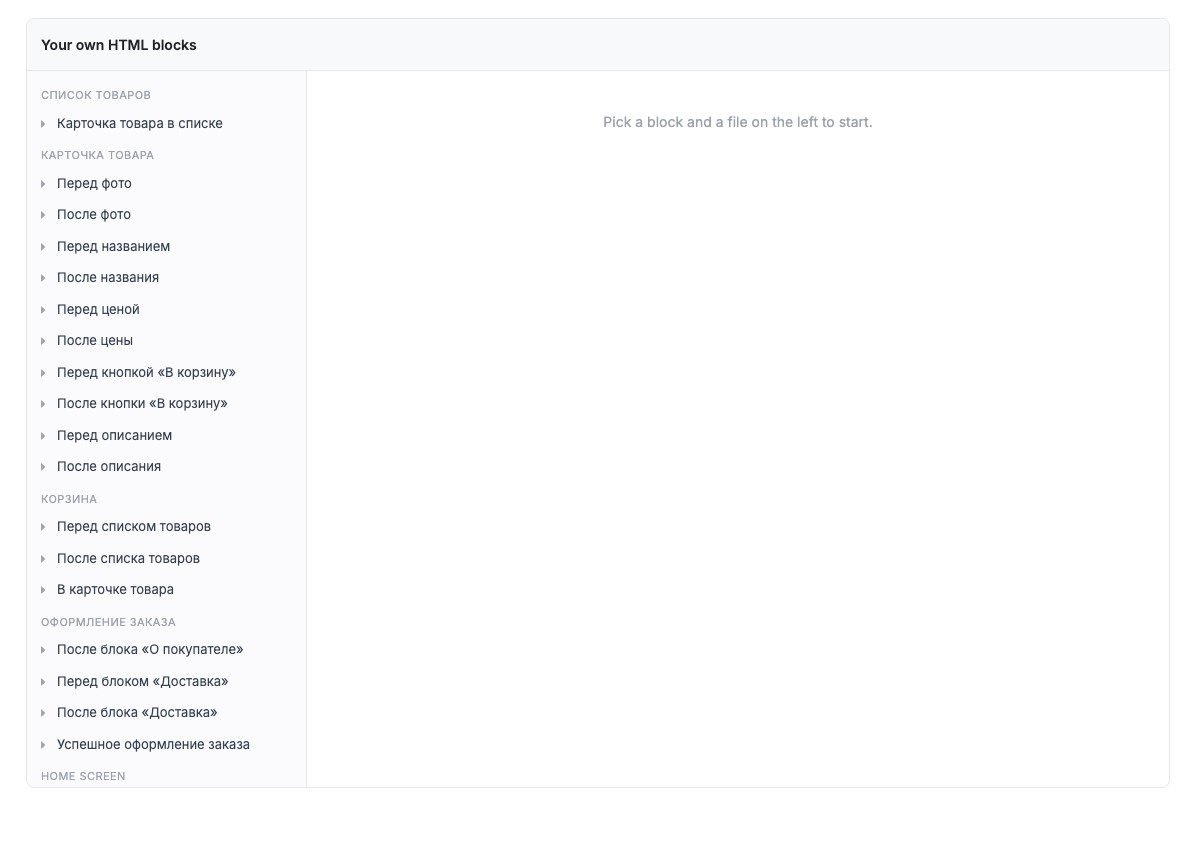
Placements
On the left is the list of places where a block can be inserted, grouped by screen:
| Screen | Placements |
|---|---|
| Product list | Product card in the list |
| Product card | Before and after the photo, before and after the name, before and after the price, before and after the Add to basket button, before and after the description |
| Basket | Before the item list, after the item list, in a product card |
| Checkout | After the About the buyer block, before and after the Delivery block, successful checkout |
| Home screen | Your own storefront blocks |
Each placement has its own set of data available in the template: on a product card that is the product with its price and attributes, in the basket it is the contents and the total.
How the editor works
Pick a placement on the left, and three files open: the template, the styles and the script. On the right is a code editor with highlighting.
The template is not a full programming language but a sandbox: conditions, loops and variable assignment plus a limited set of filters. This is deliberate: a merchant's block should not be able to do anything beyond output.
Before saving, the template is always rendered on sample data. If it fails, the save does not happen and the error is shown in the editor: a broken block will not reach a shopper.
What a block can do
Buttons and links inside a block can drive the app through a special attribute: open a catalogue section or a product, add a product to the basket, add to favourites, show a sheet with text, open a document, share a link, run a catalogue search.
The full command reference, the available variables and ready examples are in the developer section Interactive HTML blocks.
Limits and caveats
- A block is shown only at the placement where it is created. There is no single block "for the whole app".
- External scripts and stylesheets are not available in a block: everything it needs goes into the block itself.
- Changes are visible in the app immediately after saving; no rebuild is needed. The demo environment is a convenient way to check.