
Demo environment
A preview of your own app on a phone, without publishing to the stores. The demo opens inside the mobiusapp app by code or QR code.
How to open it
The rail, the App group, Demo environment. The "Open on phone" button in the cabinet header and the "Open on phone" buttons on the app screens lead here too.
What you can do
- Get the code and QR code that start the demo
- Install the mobiusapp app on an iPhone or Android
- Open your own app in demo mode
The interface
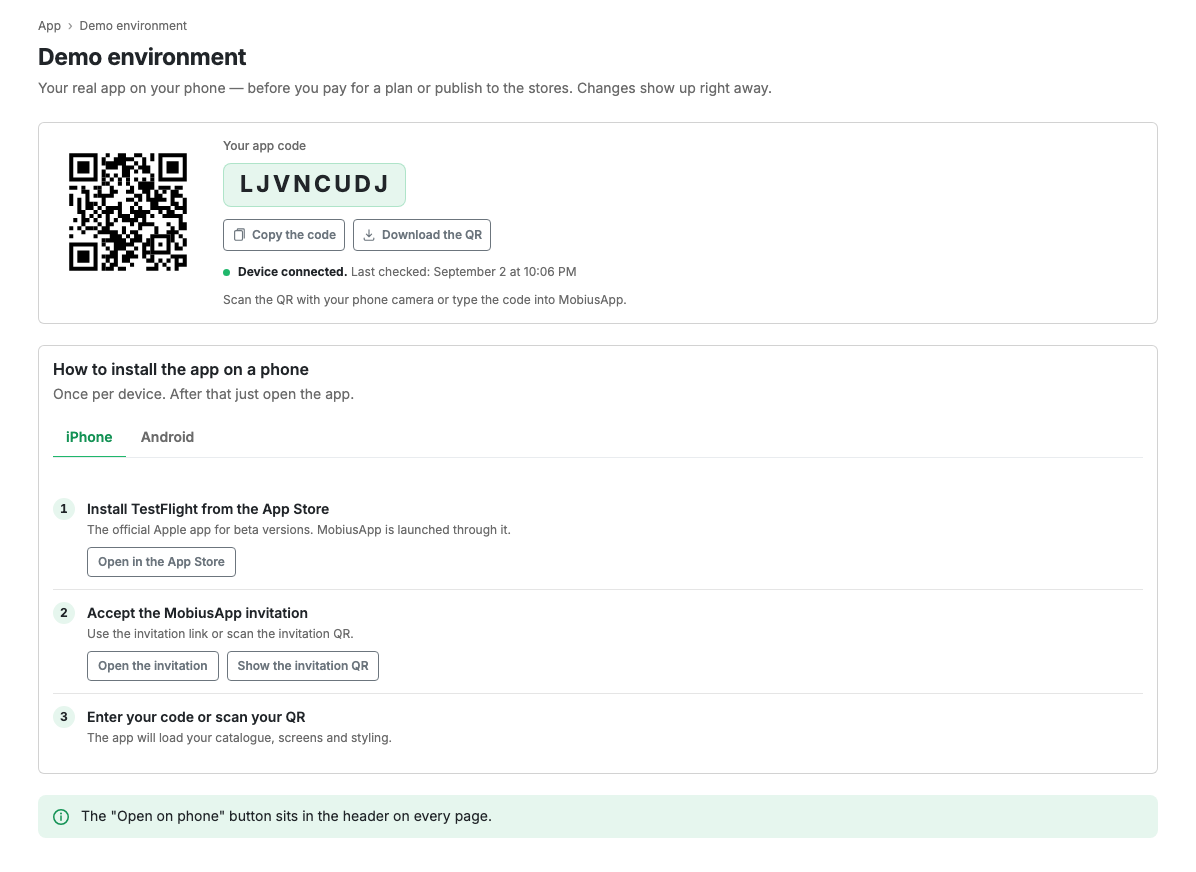
The demo code
A QR code and a text code, which can be copied. Enter the code in the mobiusapp app on your phone or scan the QR code to launch the demo version of your app.
Installation instructions
Two tabs, for iPhone and for Android:
- iPhone: install TestFlight from the App Store, then mobiusapp through TestFlight, open it and enter the code or scan the QR.
- Android: install the mobiusapp demo from Google Play, open the app and enter the code or scan the QR.
Scenarios
Open the demo on a phone
- Install the mobiusapp app following the instructions for your platform.
- Open mobiusapp.
- Scan the QR code from the page or type the code by hand.
Limits and caveats
- The demo shows the current state of the app settings: catalogue, screens, appearance.
- The demo needs the mobiusapp app installed, not your finished app from the stores.
Related pages
Updated 04.09.2026 18:04
Was this page helpful?