
Static page card
A static app page: delivery and payment, about the shop, terms.
How to open it
- New page: the Create button on the Pages tab.
- Editing: click the page name in the list.
What you can do
- Fill in the name and content of the page
- Control its activity and position in the menu
- Show an external web page instead of text
The interface
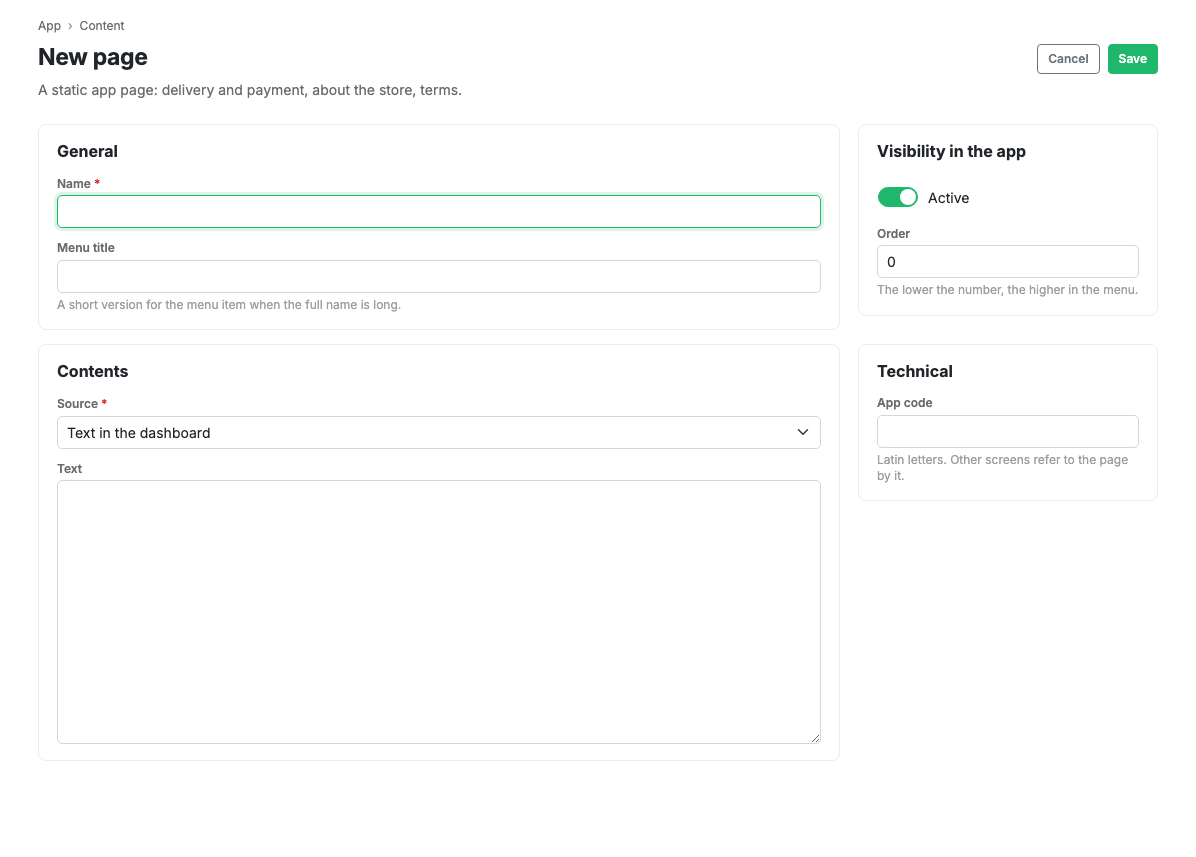
General
- Name: required.
- Menu name: a short version for the menu item when the full name is long. An empty field means the ordinary name is used in the menu.
Content
Where it comes from chooses what is shown on the page:
- Text in the cabinet: the page's own text, written here in the Text field.
- External web page: the app opens the given address inside itself. The text field is replaced by an address field.
An external page is convenient when the text already lives on your website and is edited there: it will not drift apart from the site. The trade-off is that such a page does not open without an internet connection, and its styling comes from the website rather than the app.
Visibility in the app
- Active: show the page to shoppers.
- Ordering: the smaller the number, the higher the page in the menu.
Technical
Code in Latin letters. Other screens refer to the page by it, including agreement buttons and home screen blocks.
Scenarios
Create a page with text
- Press Create on the Pages tab.
- Fill in the name.
- Leave "Where it comes from" as "Text in the cabinet" and write the text.
- Press Save.
Show a page from your website
- Create a page and fill in the name.
- In "Where it comes from" choose the external web page.
- Give the address.
- Press Save.
Related pages
Updated 04.09.2026 18:04
Was this page helpful?