
Home screen
The app home screen is assembled from blocks. Each block is a section: a slider, a product pick, stories and so on. On this page blocks can be added, configured, switched on and off and reordered.
How to open it
The rail, the App group, Screens, the Home screen card.
What you can do
- Add blocks to the home screen
- Reorder blocks by dragging
- Switch blocks on and off
- Configure each block
- Delete blocks
The interface
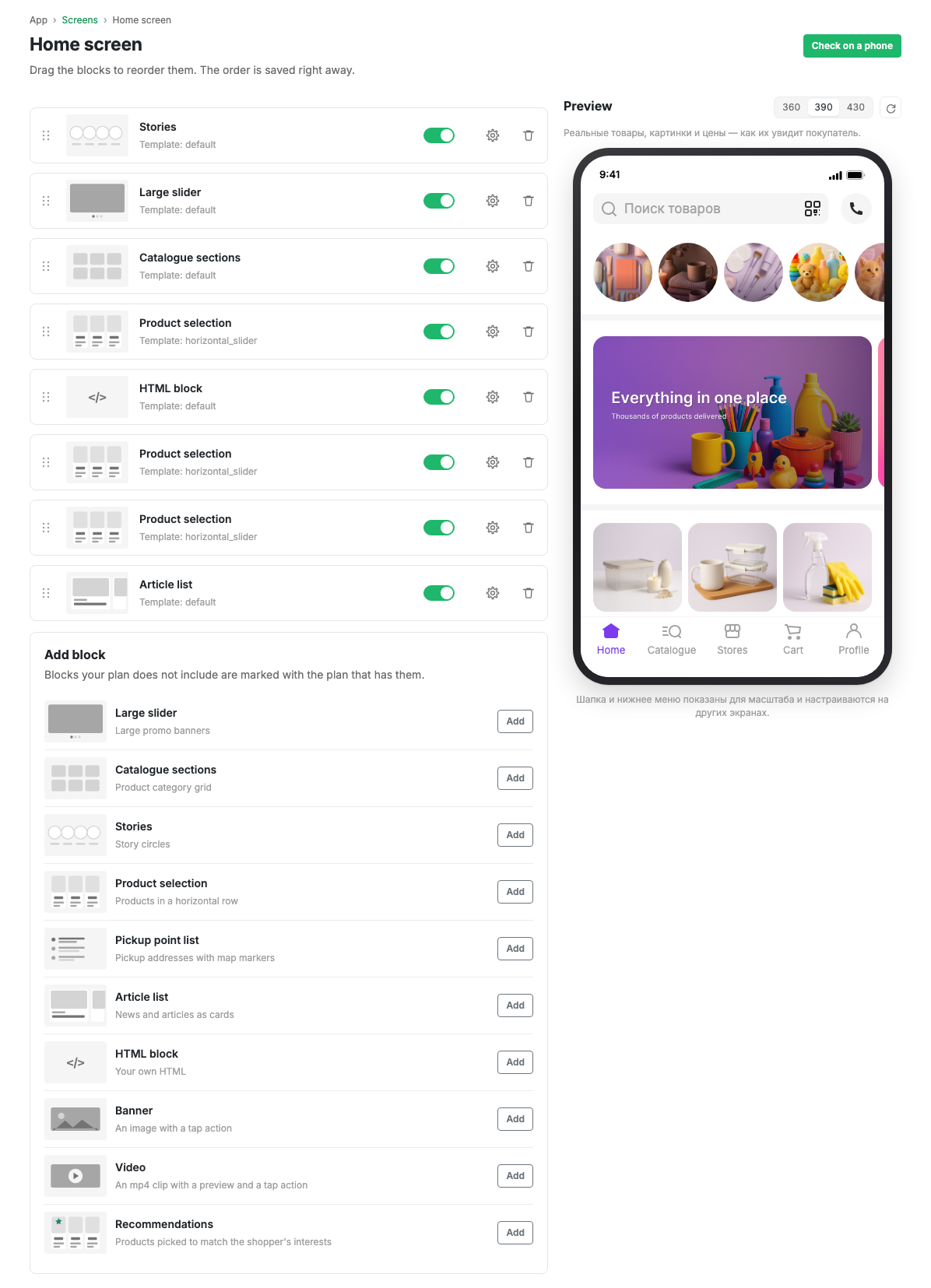
Every block in the list shows a preview, a name and a template. A block has:
- A handle on the left: drag it to move the block and change the order.
- A switch: turns the block on or off.
- A cog: opens the block settings.
- A bin: deletes the block, with confirmation.
Switched-off blocks are dimmed. The "Add block" button at the bottom opens the choice of block type.
Adding a block
When adding, you choose the block type:
| Type | What it is for |
|---|---|
| Large slider | Big banners with promotions and offers |
| Catalogue sections | A grid of product categories |
| Stories | Circles with stories, in the Stories style |
| Product pick | Product cards in a horizontal list |
| Pickup point list | Pickup addresses with map pins |
| Article list | News and articles as cards |
| HTML block | Arbitrary HTML content |
A new block opens for configuration straight away.
Scenarios
Add a block to the home screen
- Press "Add block".
- Choose the block type.
- Fill in the block settings and save.
Change the order of blocks
Drag a block by the handle on the left and drop it where you need. The order is saved automatically.
Related pages
Updated 04.09.2026 18:04
Was this page helpful?